Quick Answer
Copy and paste between an iPhone and a Mac is an Apple feature called Universal Clipboard. It only works when both devices are signed in with the same Apple Account (Apple ID), are near each other, and have Bluetooth, Wi-Fi and Handoff turned on. Checking those four things fixes most cases.
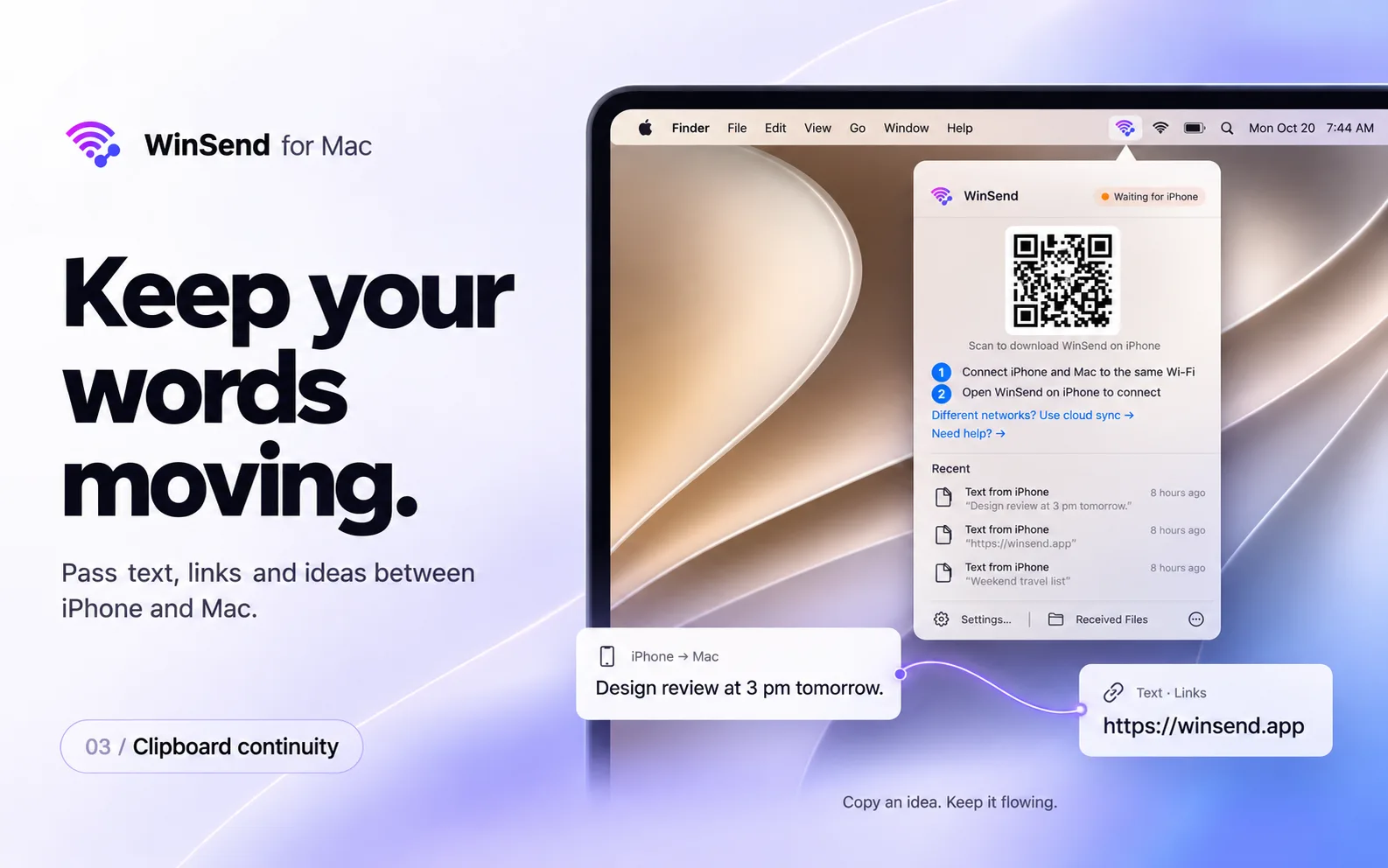
If your iPhone and Mac are signed in with different Apple IDs, for example a work Mac and a personal iPhone, Universal Clipboard cannot work at all. Use an app that copies over your local network instead, such as WinSend for Mac.
What Copy and Paste Between iPhone and Mac Needs
According to Apple's Universal Clipboard guide, it works when your devices are set up like this:
- Same Apple Account on the iPhone and the Mac;
- Bluetooth and Wi-Fi turned on on both devices;
- Handoff turned on on both devices (it is on by default);
- The devices are near each other.
Copied content is only kept on the other device briefly, or until you copy something else, so paste soon after you copy.
How to Fix Copy and Paste Between iPhone and Mac
Work through these steps in order and test after each one: copy a short piece of text on the iPhone, then press ⌘V on the Mac.
- Check the Apple Account. On the iPhone, open Settings and tap your name at the top. On the Mac, open System Settings and click your name. Both must show the same Apple Account. If they don't, skip to different Apple IDs.
- Turn on Bluetooth and Wi-Fi on both devices. The devices don't need to be on the same Wi-Fi network for this check, but both radios must be on.
- Turn on Handoff. On the iPhone: Settings > General > AirPlay & Continuity (or AirPlay & Handoff) > Handoff. On the Mac: System Settings > General > AirDrop & Continuity (or AirDrop & Handoff) > “Allow Handoff between this Mac and your iCloud devices”.
- Turn Handoff off and on again on both devices if it was already on.
- Keep the devices close, and paste within a short time after copying.
- Install software updates on the iPhone and the Mac.
- Restart both devices.
- Still not working? As a last resort, sign out of your Apple Account on one device and sign back in. Make sure you know your password and that your data is backed up first.
Using a company Mac? Your IT department may manage which Continuity features are allowed. If Handoff is unavailable or greyed out, ask your administrator.
Why It Can't Work with Different Apple IDs
Universal Clipboard is tied to your Apple Account: Apple only passes copied content between devices signed in to the same account. No setting changes that. Common situations where this gets in the way:
- A work Mac signed in with a company Apple Account, and your personal iPhone;
- A family Mac signed in with someone else's Apple ID;
- You want to copy something to a colleague's or partner's Mac.
Switching the Mac to your personal Apple ID is often not possible or not wanted. In those cases you need a tool that does not depend on Apple ID.
How to Copy and Paste Between iPhone and Mac with Different Apple IDs
WinSend connects your iPhone and Mac over your local network instead of your Apple Account, so it works whatever Apple ID each device uses. Copy text on one device and paste it on the other; images can be sent too.
Set up once
- Download WinSend for Mac (macOS 13 or later) from the download page, open the DMG and drag WinSend to Applications. It runs in the menu bar.
- Install the WinSend app on your iPhone from the App Store.
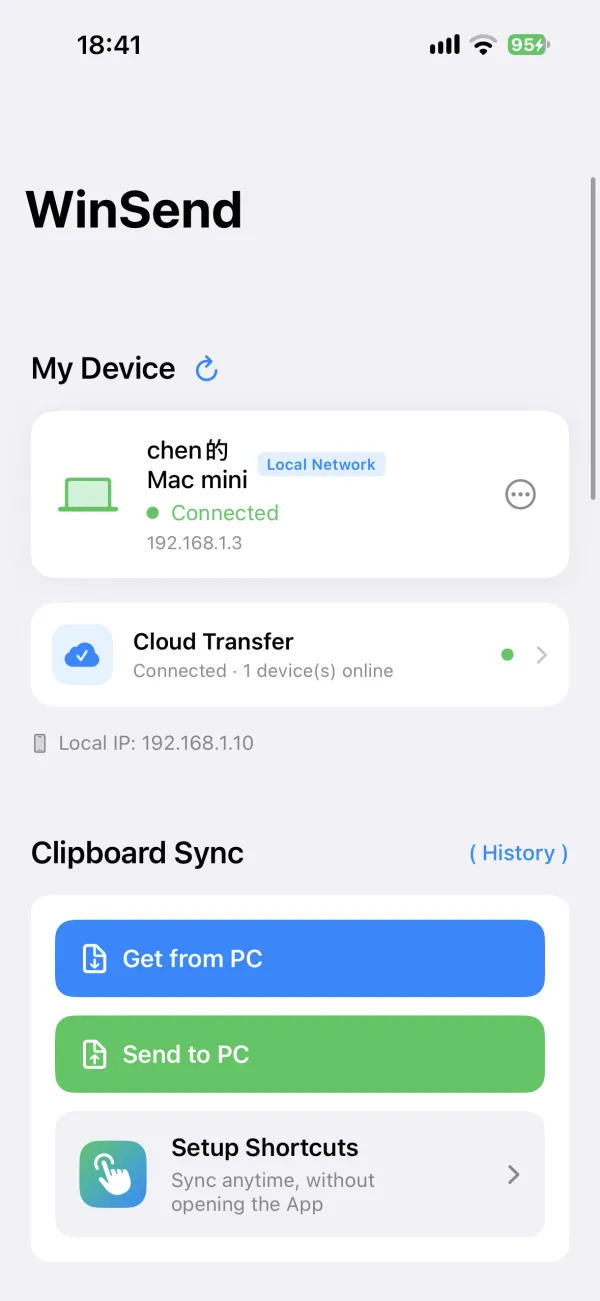
- Connect both devices to the same local network and allow Local Network access when asked. Your Mac then appears in the WinSend app on the iPhone.
From iPhone to Mac
- Copy text or an image on the iPhone as usual.
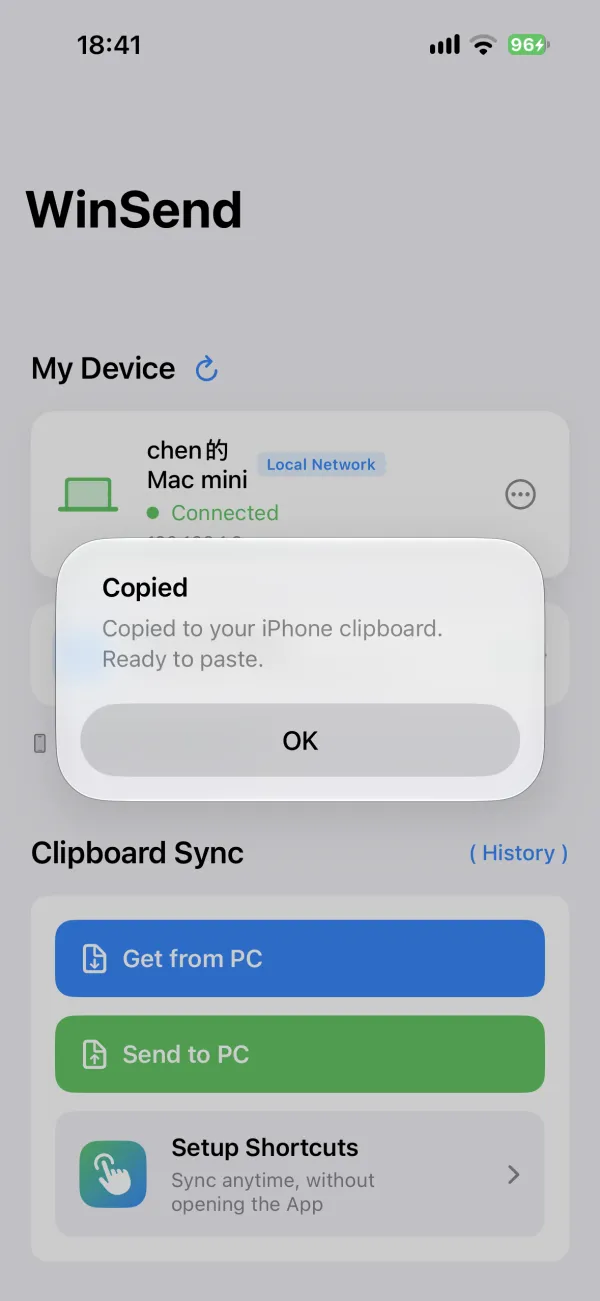
- Open WinSend and tap Send to PC. The button says PC, but it sends to whichever computer you connected, including your Mac.
- Press ⌘V on the Mac.
From Mac to iPhone
- Copy text or an image on the Mac with ⌘C.
- On the iPhone, open WinSend and tap Get from PC.
- Paste the text on the iPhone. A copied image is saved straight to Photos.
Faster: use a Shortcut or Back Tap
In WinSend on the iPhone, open the Shortcuts setup page and add the WinSend Copy Sync shortcut (iOS 16 or later). Then assign it to Back Tap (Settings > Accessibility > Touch > Back Tap). After that, copy on the iPhone, double-tap the back of the phone, and paste on the Mac, without opening WinSend. WinSend's Shortcuts actions, Send Clipboard to PC and Sync Clipboard From PC, work with your Mac too. The step-by-step setup with screenshots is in the copy and paste guide.
Good to know
- Clipboard copying runs over your local network. Use a trusted private network: local transfers are not end-to-end encrypted.
- Optional Cloud Sync can send clipboard text when the iPhone and Mac are on different networks. Images and files still need the local network.
- WinSend on the Mac skips content that password managers mark as concealed, so copied passwords are not sent.
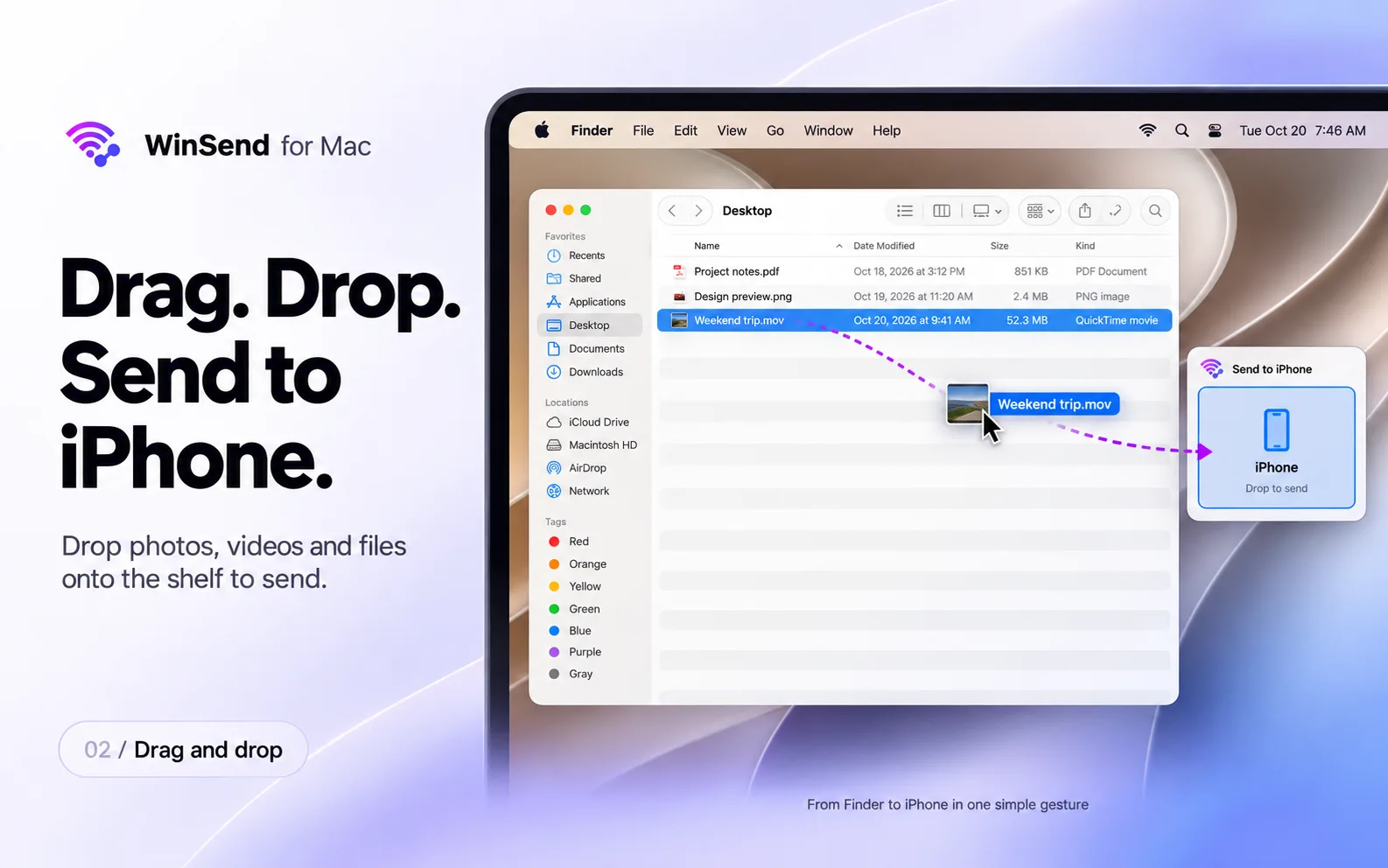
- The same app also sends photos and files between iPhone and Mac, in both directions.
- The Mac app is free. Transfers use the iPhone app's one-time free allowance, which covers every feature; after that, WinSend Pro is a one-time purchase on iPhone with no usage limits.
What About AirDrop?
AirDrop is different. It does work between devices with different Apple IDs: set the receiving device to Contacts Only (if you are in its contacts) or Everyone for 10 Minutes. For sending a photo or file once in a while, AirDrop is fine.
But AirDrop is not a clipboard. It can't put copied text on your Mac so you can press ⌘V, and it doesn't help when you move snippets back and forth all day. That is the gap WinSend fills.
Universal Clipboard vs AirDrop vs WinSend
| Universal Clipboard | AirDrop | WinSend | |
|---|---|---|---|
| Same Apple ID required | Yes | No | No |
| Connection | Bluetooth + Wi-Fi, nearby | Bluetooth + Wi-Fi, nearby | Same local network (optional cloud for text) |
| Copy text | Yes, automatic | Not a clipboard tool | Yes, in the app or with a Shortcut |
| Copy images | Yes | Not a clipboard tool | Yes, over the local network |
| Send photos and files | Only by copying and pasting | Yes | Yes, both directions |
| Also works with Windows PCs | No | No | Yes |
| Price | Free, built in | Free, built in | Mac app free; free trial on iPhone, then one-time Pro |
Our take: if your iPhone and Mac share an Apple ID, fix Universal Clipboard with the steps above; it is free and automatic. If they don't, or you also use a Windows PC, WinSend gives you copy and paste without depending on Apple ID. Copying to a Windows PC instead? See how to copy from iPhone and paste on Windows.
Frequently asked questions
Why is copy and paste between my iPhone and Mac not working?
Apple's copy and paste between devices, called Universal Clipboard, needs both devices signed in with the same Apple Account, Bluetooth, Wi-Fi and Handoff turned on, and the devices near each other. Check those, update both devices and restart them. If the devices use different Apple IDs, Universal Clipboard cannot work.
Does Universal Clipboard work with different Apple IDs?
No. Universal Clipboard only passes copied content between devices signed in to the same Apple Account, and there is no setting to change that. To copy and paste between an iPhone and a Mac with different Apple IDs, use an app that works over the local network, such as WinSend.
How do I copy and paste between iPhone and Mac with different Apple IDs?
Install WinSend for Mac and the WinSend iPhone app, and connect both to the same local network. Copy on the iPhone and tap Send to PC, or copy on the Mac and tap Get from PC on the iPhone. You can also run it from a Shortcut or Back Tap.
How do I connect an iPhone to a Mac with a different Apple ID?
Apple's Continuity features such as Universal Clipboard and Handoff need the same Apple Account. AirDrop works across different Apple IDs for sending files. For copy and paste plus file transfer between an iPhone and a Mac with different Apple IDs, WinSend connects them over your local network.
How long does Universal Clipboard keep copied content?
Only briefly. Apple says the content stays on the other device for a short time, or until you copy something else on either device, so paste soon after you copy.
Is WinSend for Mac free?
The Mac app is free. Transfers use the iPhone app's one-time free allowance, which covers every feature. After that, WinSend Pro is a one-time purchase on iPhone with no usage limits. The current price is shown in the app.
Try WinSend for Mac
Install WinSend on your Mac and iPhone, connect them to the same network, and copy across in seconds. Every feature is free to try.