You can share clipboard text between an iPhone and a Windows PC without iCloud, a cable, or emailing yourself. Keep both devices on the same Wi-Fi, copy text on your iPhone, trigger WinSend with Shortcuts or Back Tap, then paste it on Windows.
Apple Universal Clipboard works only between Apple devices. WinSend is built for the iPhone-and-Windows workflow: it sends clipboard text directly across your local network, so you do not need to open a chat app for every link, note, or password.
For file and photo transfers—not clipboard sync—see our AirDrop alternatives for Windows comparison.
Actual Usage Effect
Below is a practical demonstration
Detailed Setup Tutorial
Install once, use anytime
Step 1: Install WinSend iOS and Windows Client
First ensure both iPhone and Windows are installed and running normally in the same network environment.
Installation process can be found at: WinSend Installation and Pairing Setup
Step 2: Open WinSend App, Enter Shortcuts Setup Page
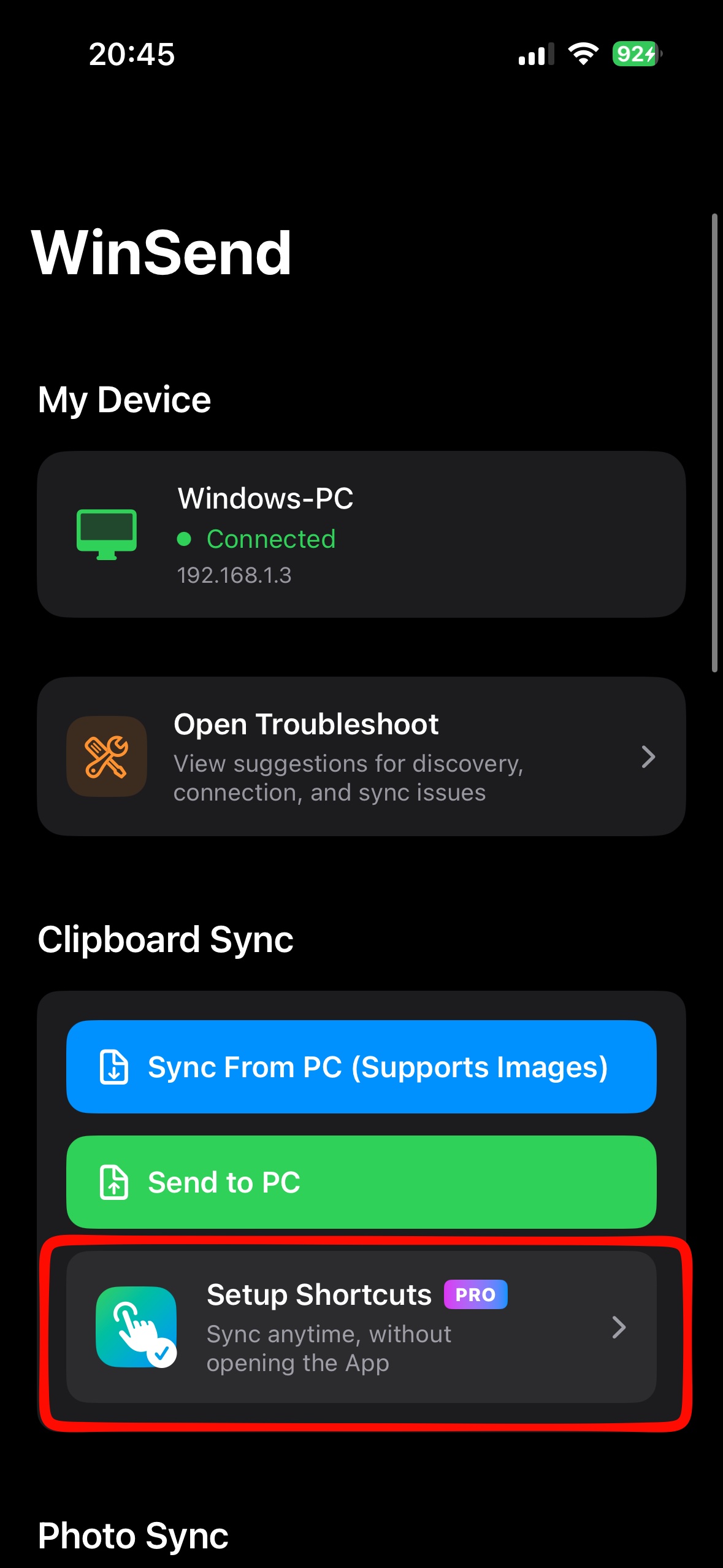
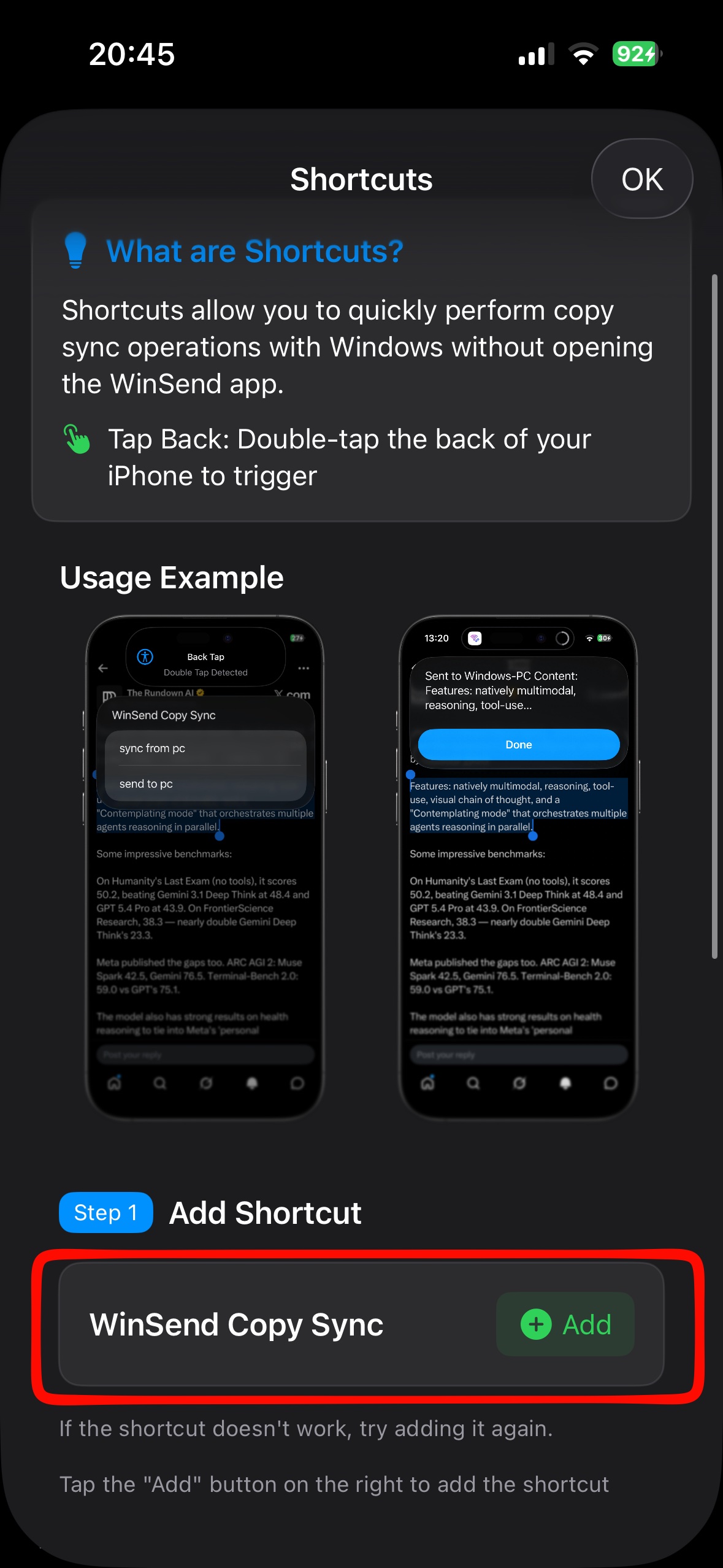
Step 3: Add Shortcut
Complete shortcut addition through the entry provided in the app. You can view it in the Shortcuts app.
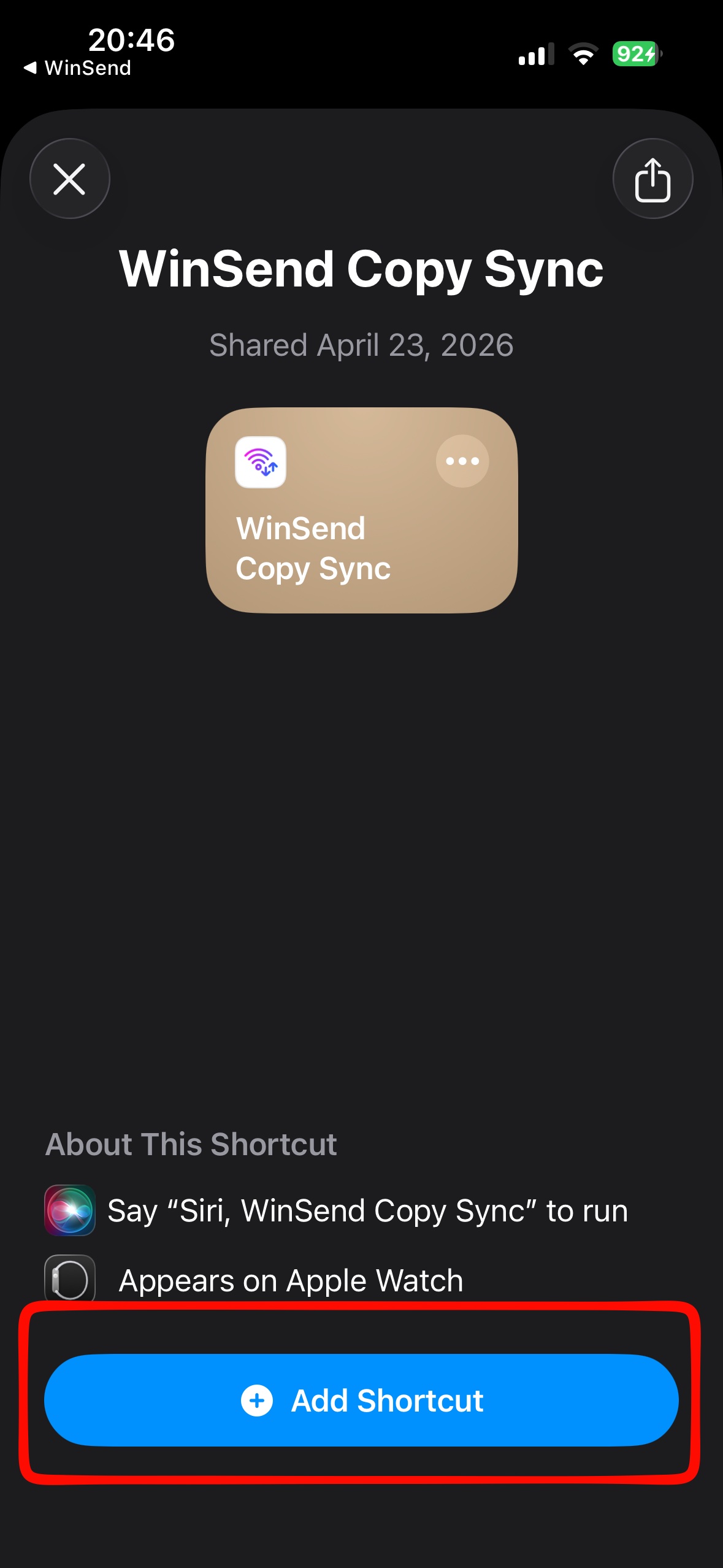
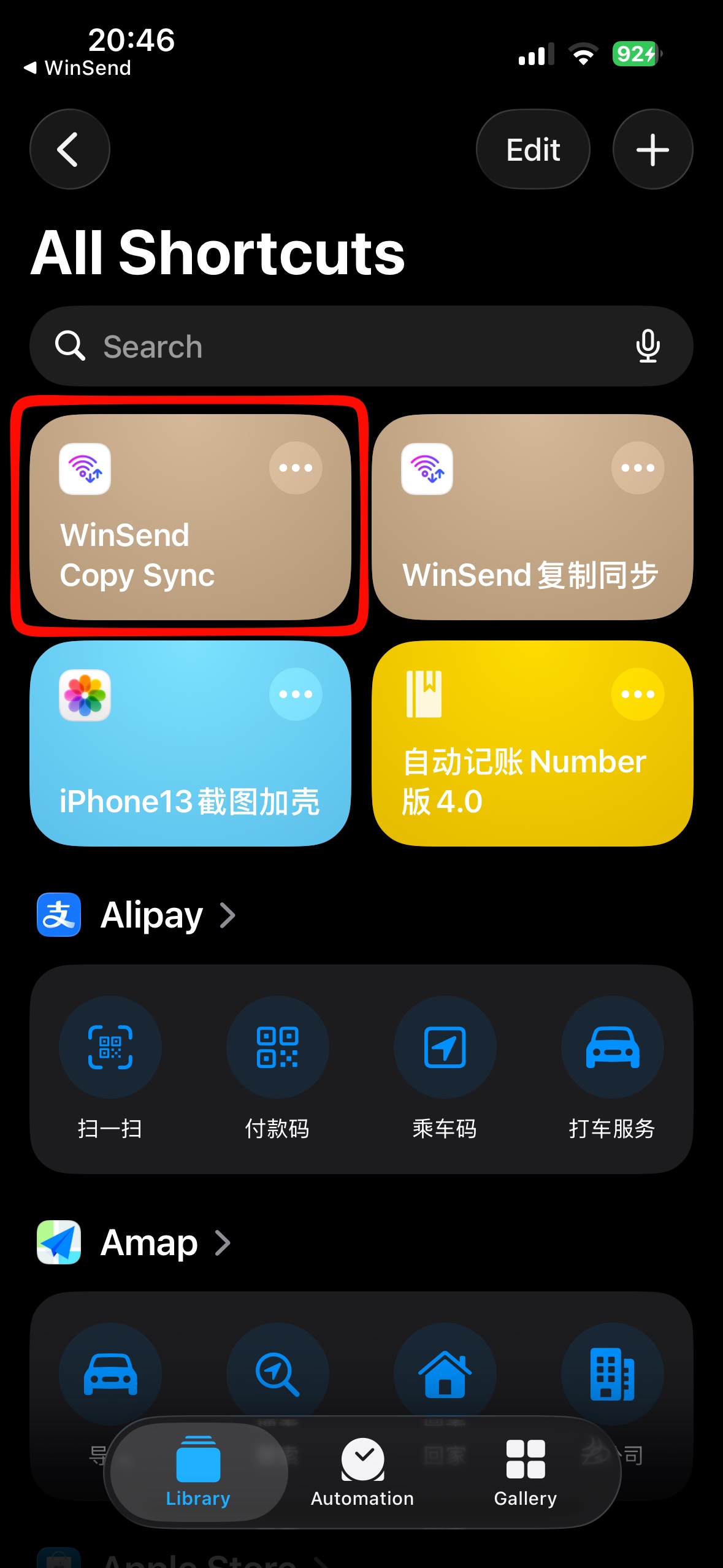
Step 4: Set Up Back Double Tap / Triple Tap Trigger
Bind the newly added shortcut to iPhone's "Back Tap" feature. We recommend trying double tap first. If concerned about accidental triggers, you can also use triple tap.
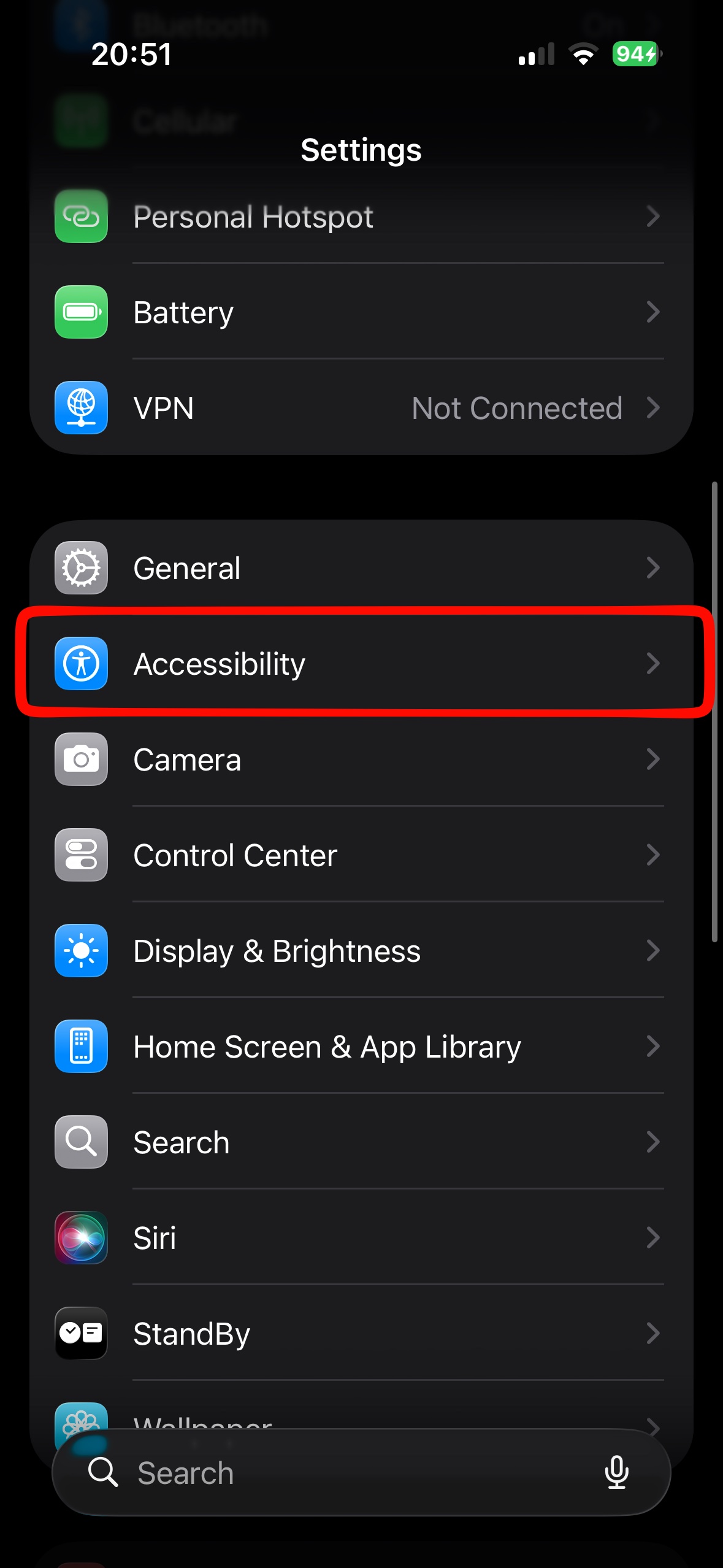
- 1 Open iPhone "Settings"
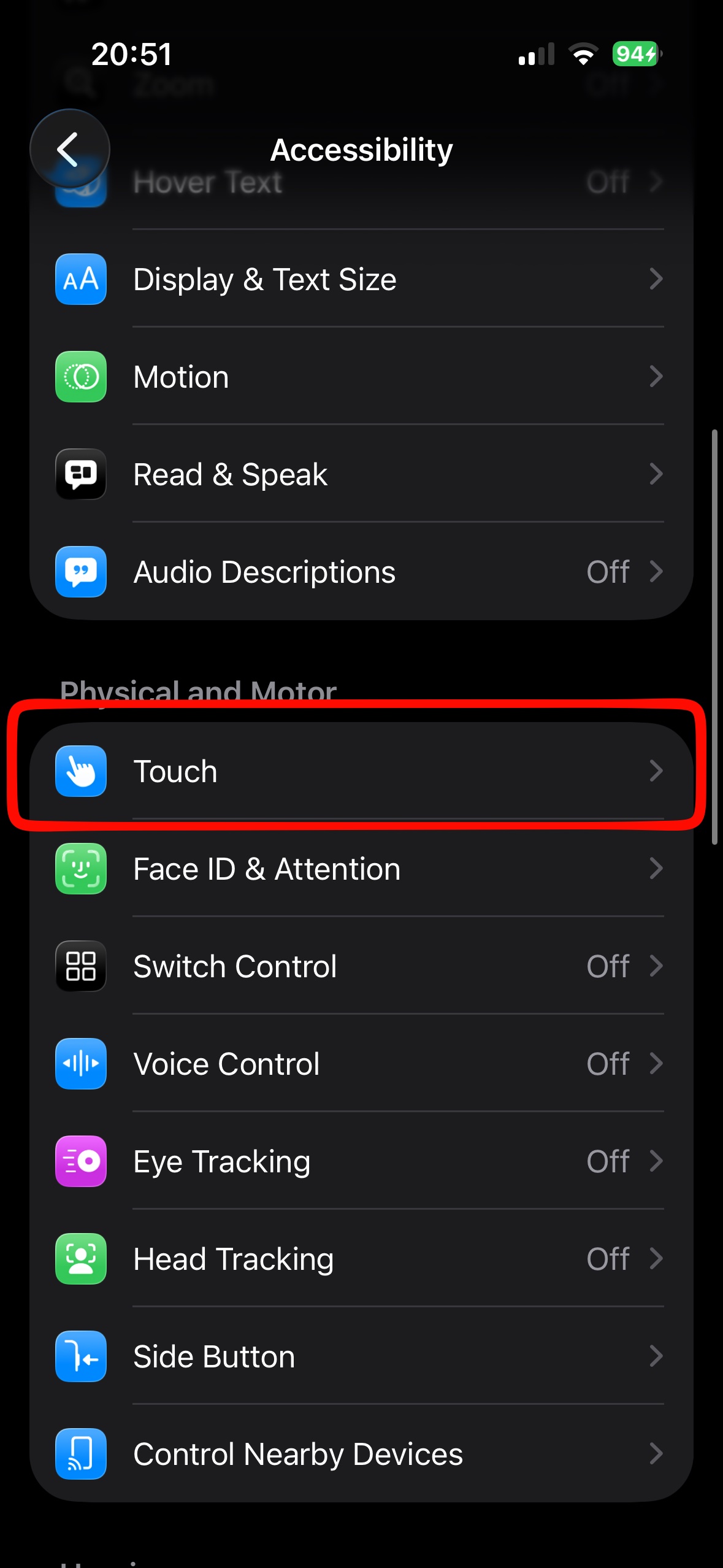
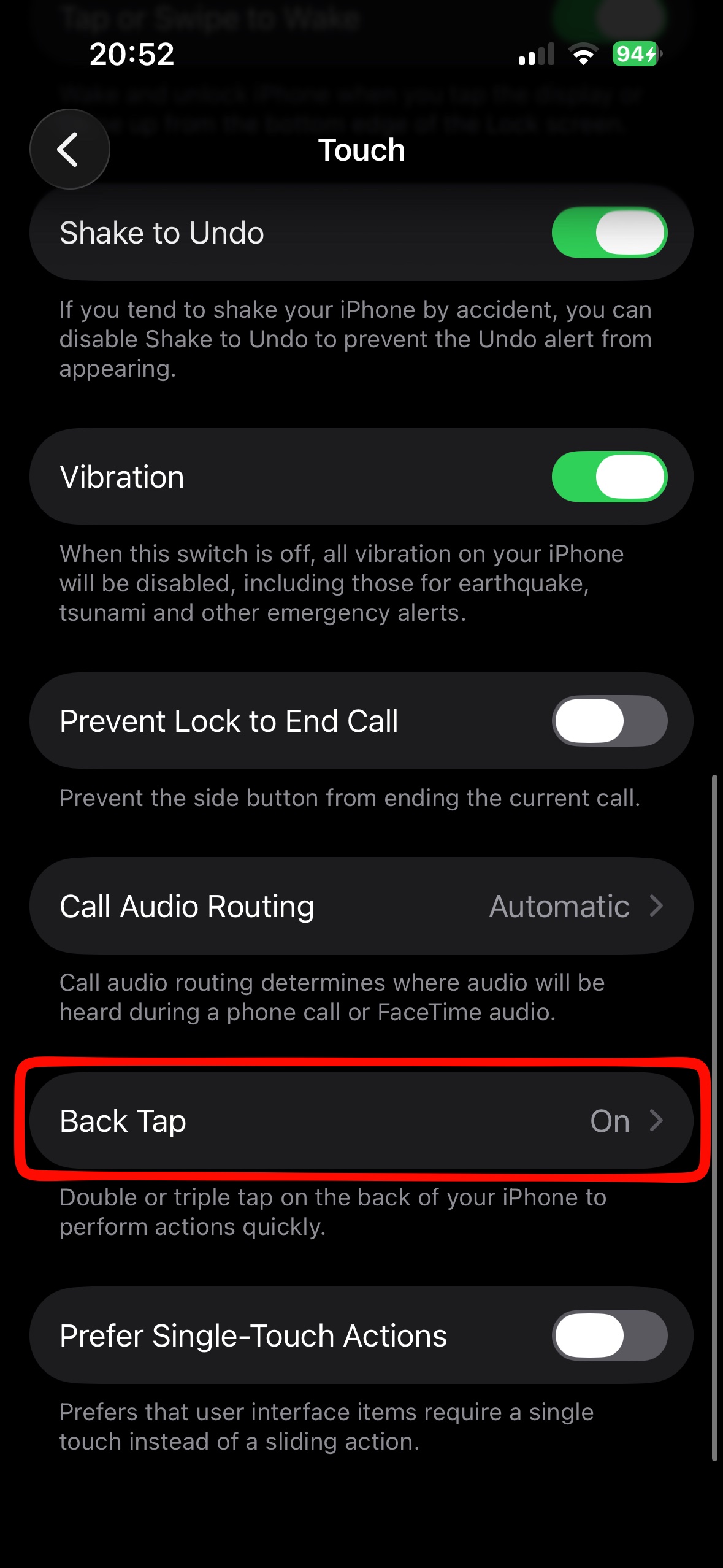
- 2 Go to "Accessibility" → "Touch" → "Back Tap"
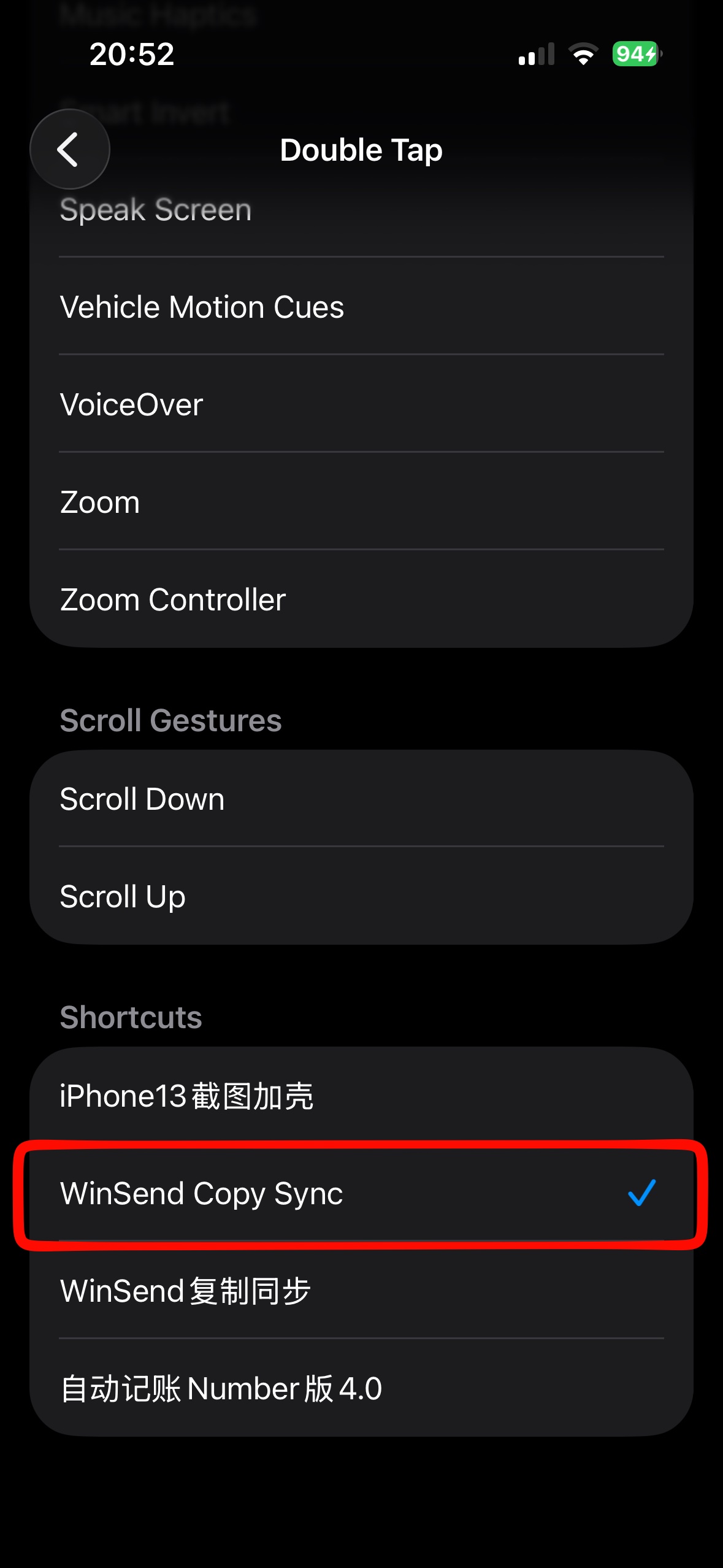
- 3 Select "Double Tap" or "Triple Tap"
- 4 Find and select "WinSend Copy Sync"
- ✓ After completion, double tap the back of your phone to trigger sync
FAQ
1. Can iPhone and Windows share clipboard?
By default, no.
Apple's Universal Clipboard only supports syncing between iPhone, iPad, and Mac. Windows computers cannot use it directly.
If you're using a Windows PC, use WinSend with its iPhone Shortcut to send copied text directly to your Windows clipboard.
2. Can AirDrop transfer to Windows computers?
No.
AirDrop only supports transfers between Apple devices, such as iPhone, iPad, and Mac.
For photos, videos, and files between iPhone and Windows, see our AirDrop alternatives for Windows comparison.
3. How to quickly send copied text from iPhone to computer?
You can:
- Copy text/link on iPhone
- Trigger WinSend shortcut
- Directly Ctrl + V to paste on Windows
No need for WeChat, QQ, email, or manually sending to yourself.
4. Must I use WeChat to transfer text between iPhone and Windows?
Not necessarily.
Many people are used to:
- Sending WeChat messages to themselves
- Using QQ File Assistant
- Saving to Notes
- Sending emails
These methods require more steps and are slower.
If you just want to quickly sync text or links, directly sharing clipboard is more convenient.
5. Do I need iCloud to sync clipboard between iPhone and Windows?
No. WinSend does not rely on iCloud and does not require Apple ID.
6. What's the difference between WinSend and AirDrop?
AirDrop is more suitable for devices within the Apple ecosystem.
If you're using:
- iPhone + Windows
- iPhone + PC
WinSend is more suitable for cross-platform scenarios.
7. What's the difference between WinSend and Microsoft Phone Link?
Phone Link has more features but the configuration process is relatively complex. It requires registering and logging into a Microsoft account.
WinSend is more focused on:
- No registration, no login.
- Fast sending.
The operation is more lightweight.