Quick Verdict
- Choose WinSend if you transfer between your own iPhone and Windows PC regularly and want it to work every time: local-network discovery with a manual IP fallback, share sheet sending, and automatic clipboard sync — no public server involved.
- Choose Snapdrop for one-off transfers to someone else's device, or when Android, Mac or Linux are involved — nothing to install, just open the website in a browser.
WinSend vs Snapdrop at a Glance
| WinSend | Snapdrop | |
|---|---|---|
| Type | Native Windows + iOS apps | Browser-based (WebRTC P2P) |
| Platforms | Windows + iOS only | Any device with a browser (incl. Android, Mac, Linux) |
| Installation | One-time install on both devices | None — open the website |
| Device discovery | Local network + manual IP connect fallback | Via public snapdrop.net server — fails on VPNs, guest networks, AP isolation |
| Depends on a public server | No — local network only | Yes — snapdrop.net handles discovery/signaling |
| Send without opening the app | Yes — iOS share sheet integration | No — must open the website |
| Clipboard sync | Automatic, two-way | No |
| Receiver must accept | No — paired device receives automatically | Yes — receiver accepts in the browser |
| Large files | Native-app stability | Less stable than native apps; downloaded files may be auto-renamed |
| Price | Free core features; Pro subscription for advanced features | Free |
Where WinSend Wins
1. Discovery that actually works — no public server dependency
Snapdrop finds devices through the public snapdrop.net server, which pairs browsers that share the same public IP. That single design choice is behind most "Snapdrop not working" reports: a VPN on either device, a guest or office network with AP isolation, or a campus router all break discovery. WinSend discovers devices directly on your local network, and if automatic discovery is blocked you can fall back to manual connect by typing your PC's IP address — there is no third-party server in the path at all.
2. Send from the share sheet — no app switching
With Snapdrop you open a browser tab, wait for the devices to see each other, then pick the file. With WinSend, you select photos in the iPhone Photos app, tap Share, choose WinSend, and the file lands on your PC. You never leave the app you are in — exactly how AirDrop works on a Mac.
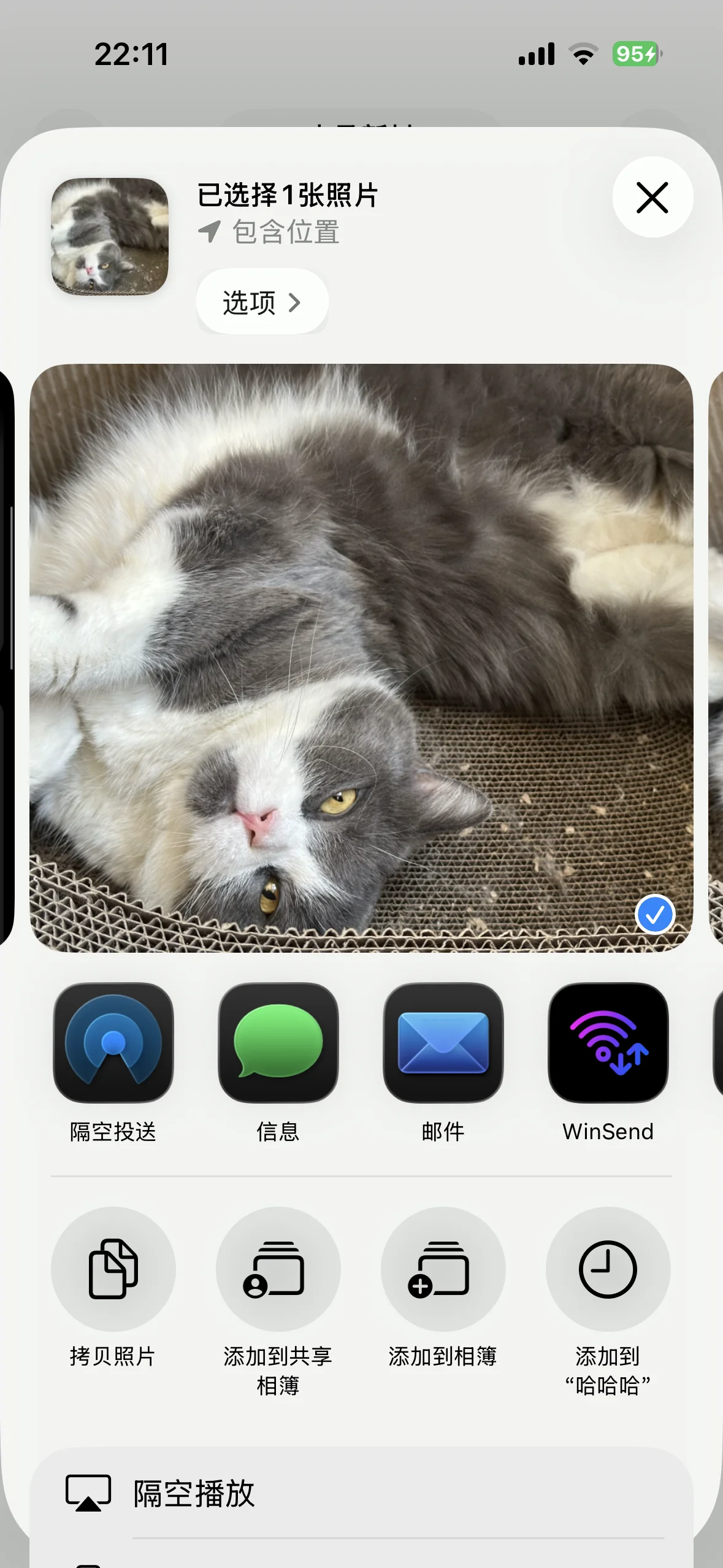
WinSend lives in the iOS share sheet, alongside AirDrop.
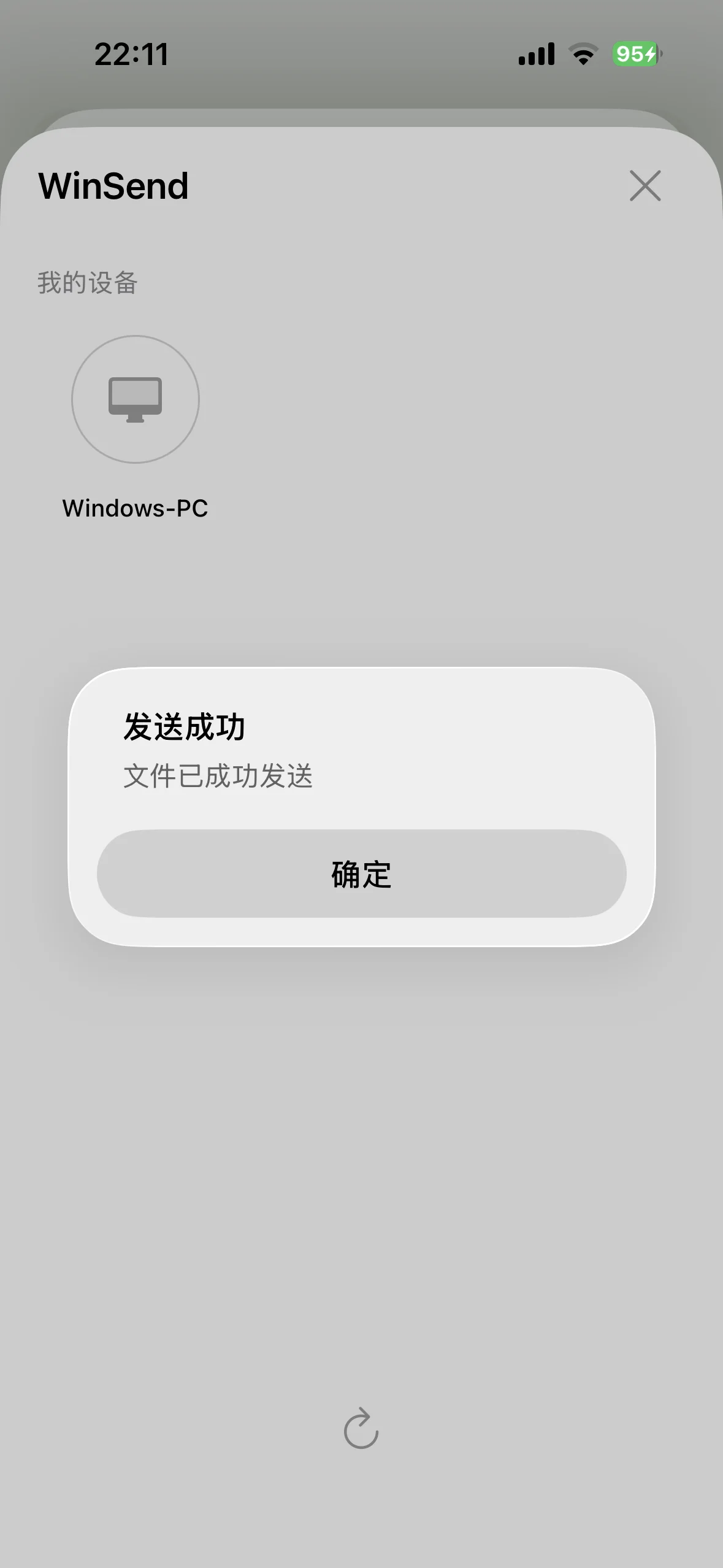
Select, share, done — the file is already on your Windows PC.
3. Automatic two-way clipboard sync
Copy text, a link, or an image on your Windows PC and it appears on your iPhone — and vice versa. Snapdrop has no clipboard sync at all. If you copy and paste between devices more than a few times a day, this alone is the reason to pick WinSend. See how clipboard sync works with Shortcuts and Back Tap.
4. Paired devices receive automatically
Once paired, your PC accepts incoming files without anyone touching it — useful when your PC is across the room or you are transferring a batch of photos. Snapdrop requires the receiver to accept each file in the browser.
Where Snapdrop Wins
To keep this comparison honest, Snapdrop is the better tool in several situations:
- Zero install — both sides just open a website. Nothing to download, nothing to configure.
- Any platform — works on Android, macOS, Linux, ChromeOS — anything with a modern browser. WinSend is Windows ↔ iPhone only.
- One-off transfers to someone else's device — perfect when you need to send a file to a friend's computer or phone once, without asking them to install an app.
- Completely free — no paid tier.
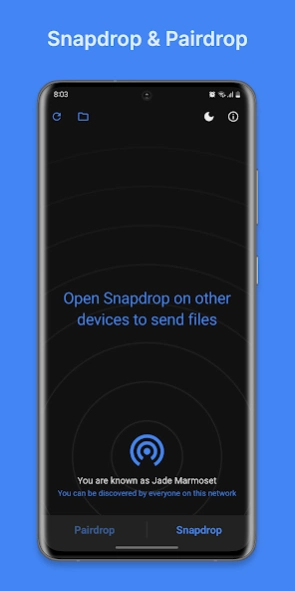
Snapdrop in the browser — beautifully simple, as long as discovery cooperates.
Privacy and Security
Snapdrop transfers file data peer-to-peer over WebRTC, which encrypts traffic in transit, so file contents do not pass through the server. But discovery and signaling rely on the public snapdrop.net service, which means both browsers must be able to reach that third-party server for the tools to see each other. WinSend works entirely on your local network: discovery and transfer never leave your Wi-Fi, and there is no account or cloud component at all.
Who Should Choose Which?
- iPhone + Windows PC, daily transfers, want it to work every time → WinSend.
- Snapdrop keeps failing to find your devices (VPN, guest network, AP isolation) → WinSend, with its local discovery and manual IP fallback.
- One-time transfer to someone else's device → Snapdrop — nothing to install.
- Android, Mac or Linux in the mix → Snapdrop.
Looking at other options too? See our full roundup of the 5 best AirDrop alternatives.
FAQ
Why does Snapdrop not find my device?
Snapdrop discovers devices through the public snapdrop.net server: both browsers must connect to it, and it only pairs devices that appear to share the same public IP address. That breaks when one device is on a VPN, when the router isolates clients (AP isolation on guest, office or campus networks), or when the two devices reach the internet through different routes. If discovery keeps failing, a native app like WinSend is the reliable alternative — it discovers devices directly on the local network and offers a manual IP connect fallback when automatic discovery is blocked.
Is Snapdrop safe?
Snapdrop transfers files peer-to-peer over WebRTC, so the file data itself goes directly between the two browsers and is encrypted in transit by WebRTC. However, device discovery and signaling depend on the public snapdrop.net server, so using it requires an internet connection to that third-party service. WinSend avoids this entirely: discovery and transfer both happen on your local network, with no public server involved.
Is WinSend a good Snapdrop alternative?
Yes, if your devices are an iPhone and a Windows PC. WinSend is a native app pair that discovers devices on the local network (with a manual IP fallback), integrates into the iOS share sheet, syncs the clipboard automatically in both directions, and does not depend on any public server. If you need to send a file to an Android, Mac or Linux device — or to someone else's computer with zero install — Snapdrop's browser approach is more convenient.
Does Snapdrop work without installing anything?
Yes. Snapdrop runs entirely in the browser on both devices — just open the website on each. That is its biggest strength for one-off transfers. WinSend requires installing the Windows client and the iOS app once, but after that every transfer is faster to start: no browser tabs to keep open, and you can send straight from the iPhone share sheet.
Try WinSend
If your daily setup is an iPhone and a Windows PC, download WinSend and pair it in under a minute with the installation guide.