Quick Answer: Which AirDrop Alternative Should You Choose?
Windows has no AirDrop: Apple's AirDrop only works between Apple devices. To send files from an iPhone to a Windows 10 or Windows 11 PC wirelessly, use one of these tools instead:
- WinSend: for iPhone and Windows users who want local file transfer plus clipboard sync.
- LocalSend: for a free, open-source tool across several operating systems.
- PairDrop: for occasional browser-based transfers without installing an app (Snapdrop has been acquired by LimeWire; PairDrop is its open-source fork).
- Send Anywhere: for sending files when devices are on different networks.
- Microsoft Phone Link: built into Windows; handles calls, texts and file sharing with an iPhone, but not the clipboard (what Phone Link can and can't do).
Looking specifically for text copy and paste? Read our guide to sharing clipboard between iPhone and Windows.
Why Do You Need an AirDrop Alternative for Windows?
If you use a Windows PC and an iPhone together, you've probably faced these situations:
- You took photos or videos on your iPhone and want to quickly move them to your PC for editing or backup;
- You copied a link, password, or paragraph on your PC and need it on your phone;
- You want to avoid messaging apps or email because they compress images, limit file sizes, or raise privacy concerns;
- You don't want to plug in a cable or upload files to the cloud.
Apple's AirDrop only works within the Apple ecosystem — there is no AirDrop for Windows. The tools below fill that gap and let you transfer files from iPhone to PC wirelessly.
Quick Comparison of the 5 Best iPhone-to-Windows Transfer Tools
| Tool | Type | Platforms | Internet Required? | Best For |
|---|---|---|---|---|
| WinSend | Free trial App | Windows + iOS | Local network (optional cloud for text) | Dedicated Win ↔ iPhone users |
| LocalSend | FreeOpen Source | All major platforms | Local network only | Privacy-focused users |
| PairDrop | FreeWeb | Any browser | Needs pairdrop.net access | Quick, one-off transfers |
| Feem | FreePro license | All major platforms | Local network only | Chat-style file sharing |
| Send Anywhere | FreePremium | All major platforms | Offline or cross-network | Large files across networks |
What About Microsoft Phone Link?
Windows comes with Microsoft's own option: Phone Link, paired with the Link to Windows app on the iPhone. On Windows 10 and 11 it handles calls, single-person text messages, notifications and, since 2025, file sharing in both directions: on the iPhone you tap Share and choose Link to Windows.
It is free and already on your PC, so it is worth trying first. Its limits with an iPhone: no clipboard sync, no group messages or photos inside messages, and it relies on a Bluetooth connection to the phone. If you mostly copy text between iPhone and PC, or want a Back Tap shortcut, one of the tools below fits better. Read the full guide to Phone Link for iPhone.
The 5 Tools in Detail
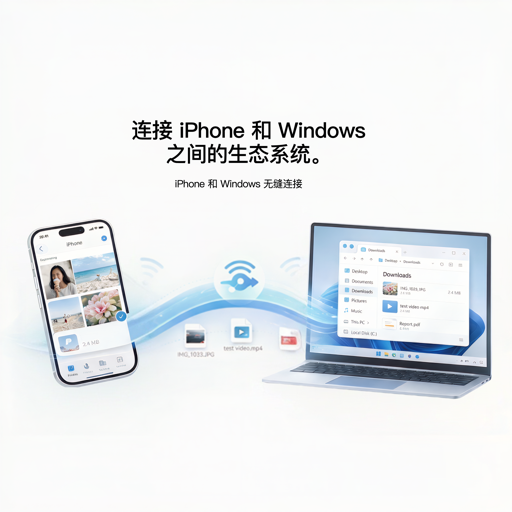
WinSend
The dedicated Windows ↔ iPhone transfer app
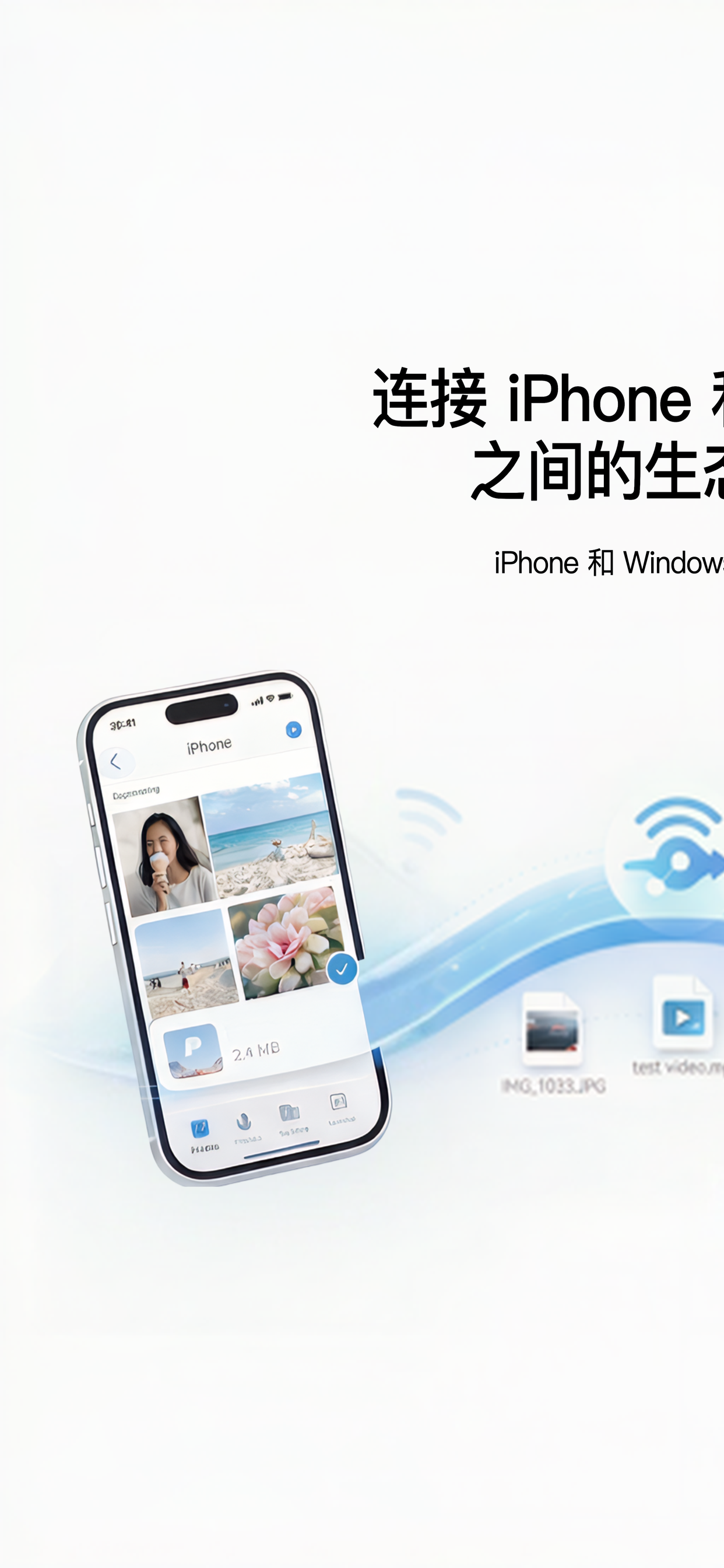
WinSend is built specifically for wireless file and clipboard sharing between Windows and iPhone. Files and photos transfer directly over a reachable LAN without a cloud file upload or WinSend account. Optional cloud clipboard relays encrypted text only. For the clipboard-only setup, follow the iPhone-to-Windows clipboard sync guide.
How to Use It
- Install WinSend on your Windows PC (Microsoft Store recommended);
- Install the WinSend iOS app and make sure both devices are on the same Wi-Fi;
- Open the app — your Windows PC should appear automatically;
- Tap “Get from PC” to fetch the PC clipboard, or “Choose Images and Send to PC” / “Choose Files and Send to PC” to transfer from iPhone; you can also send straight from the Photos share sheet;
- If auto-discovery fails, use “Manual Connect” and enter your PC's local IP address.
Pros
- Optimized for Windows + iPhone workflows;
- Two-way clipboard transfer, plus Back Tap Shortcuts;
- Fast local network transfers, no internet needed;
- No account or sign-up required.
Cons
- Only supports Windows ↔ iOS;
- Free trial, then a one-time WinSend Pro purchase;
- Windows client needs to stay running in the background.

LocalSend
Free, open-source AirDrop alternative
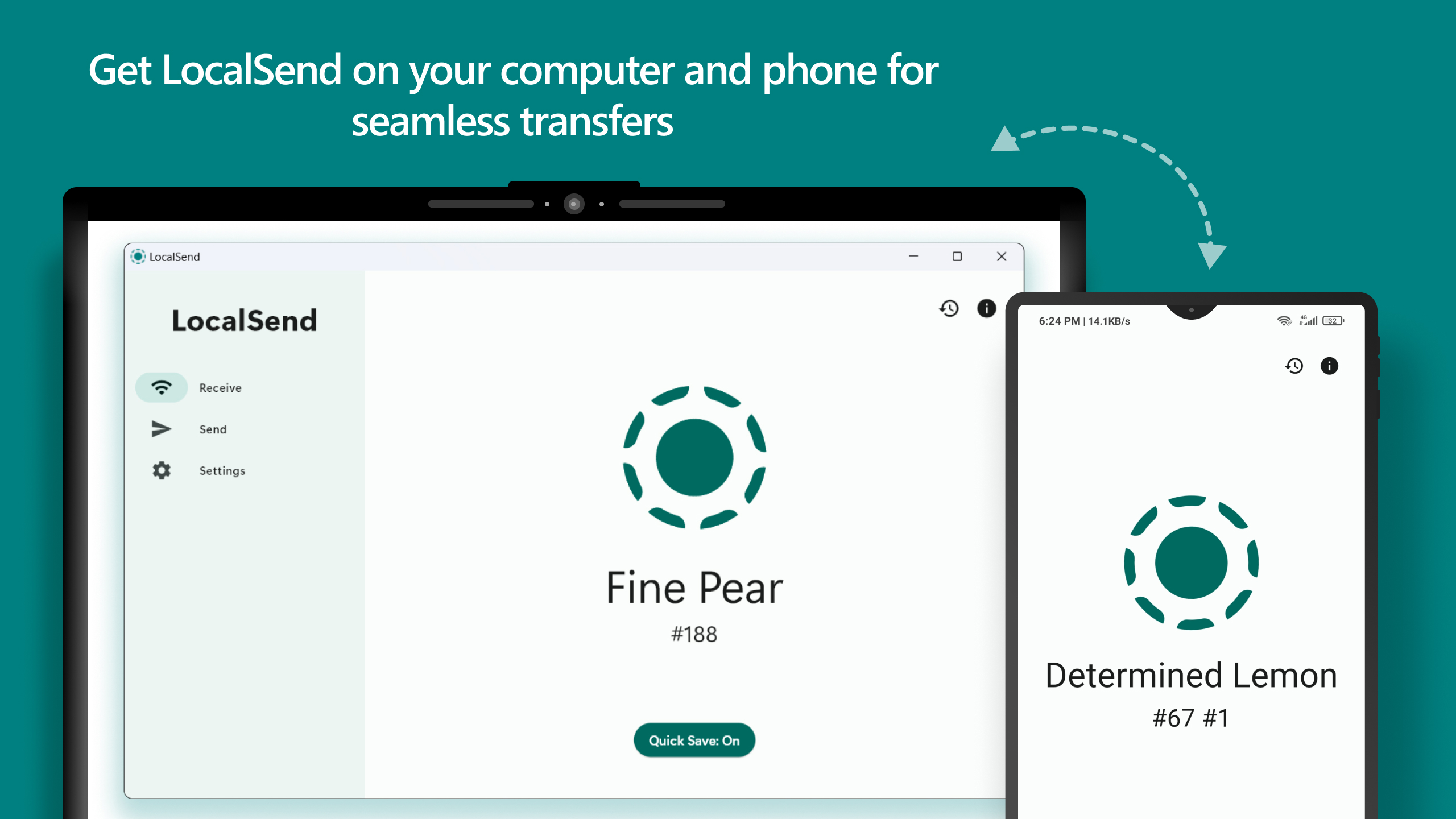
LocalSend is one of the most popular open-source file transfer tools. It supports Windows, macOS, Linux, Android, and iOS, uses UDP multicast to discover nearby devices, and transfers files over HTTPS with locally generated certificates. Your data never touches an external server.
How to Use It
- Install LocalSend on all devices;
- Make sure devices are on the same Wi-Fi or LAN;
- Open the app, go to the Send tab, and select files or text;
- Choose the target device from the Nearby Devices list;
- The receiver accepts the transfer (files from favorite devices can be accepted automatically).
Pros
- Fully free and open source, no ads;
- Supports nearly every major OS;
- HTTPS-encrypted transfers for strong privacy;
- Clean interface; on Windows it appears in the File Explorer share menu (v1.18).
Cons
- Both devices normally need the app (newer versions can also receive via a browser link);
- Multicast discovery may be blocked on corporate or guest networks;
- iOS background discovery can be inconsistent.
PairDrop
Browser-based AirDrop-style sharing (the open-source Snapdrop fork)
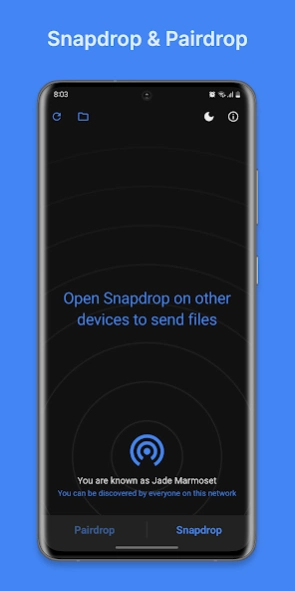
PairDrop is an open-source fork of Snapdrop that runs in any modern browser. Open pairdrop.net on both devices and they find each other on the same network; you can also pair devices with a 6-digit code so they find each other later, even across networks. The biggest advantage is that no installation is required.
What happened to Snapdrop? Snapdrop was acquired by LimeWire. AlternativeTo now lists it as discontinued and reports that the site redirects to LimeWire after you upload a file. If you liked Snapdrop, PairDrop keeps the same browser-based approach and is still maintained.
How to Use It
- Open a browser on both your Windows PC and iPhone;
- Visit pairdrop.net on both devices;
- Wait for each device to appear, or pair them with a 6-digit code;
- Tap the target device and choose a file, or right-click / long-press to send text;
- The file downloads on the receiving device.
Pros
- No app installation needed;
- Simple, AirDrop-like interface;
- Free and open source; can be self-hosted;
- Paired devices can connect across networks.
Cons
- Relies on the pairdrop.net server for discovery (unless self-hosted);
- Large transfers are less stable than native apps;
- No iOS share sheet integration: you open the browser each time;
- VPNs and restrictive networks can break discovery.

Feem
Chat-style file sharing across devices
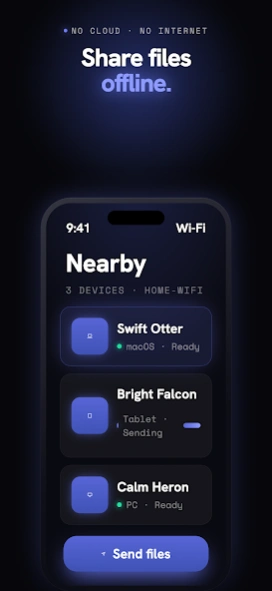
Feem is a long-standing cross-platform transfer tool built around a chat-like experience; the current version is Feem v5, with one license across platforms. It has clients for Windows, macOS, iOS and Android. Devices on the same Wi-Fi automatically discover each other, and you can send text, images, videos, and even folders through conversation-style sessions.
How to Use It
- Install Feem on both Windows and iPhone;
- Open the app and wait for devices to appear;
- Select the target device to open a chat session;
- Tap the attachment button to send files or paste text directly;
- The receiver views and downloads content from the session.
Pros
- Chat-style history makes transfers easy to track;
- Feem v5 keeps folder structure when sending folders;
- Established tool with a broad user base;
- No internet required; pure local network transfer.
Cons
- Some features need a paid Feem Pro license;
- iOS integration with the system share sheet is weak;
- Some users report connection instability after updates;
- Older Feem v4 setups need upgrading to v5 to stay current.

Send Anywhere
Cross-network transfers with a 6-digit key
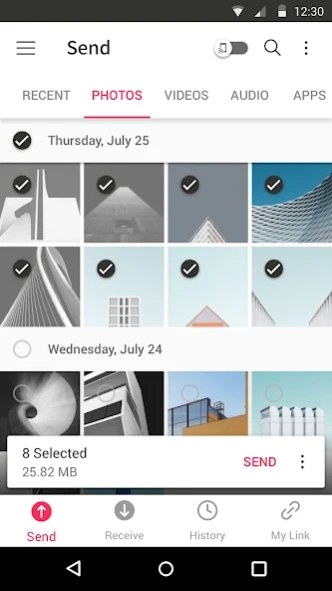
Send Anywhere differs from the others because it doesn't require devices to be on the same network. Using a 6-digit key, you can transfer files across different networks or even different locations. The sender uploads or generates a key, and the receiver enters it to download — useful for sending large files to friends remotely.
How to Use It
- Open Send Anywhere on the sending device and select your files;
- Tap Send to generate a 6-digit key or QR code;
- On the receiving device, open Send Anywhere and choose Receive;
- Enter the 6-digit key and wait for the download;
- On the same LAN, you can also use Nearby device discovery for instant sending.
Pros
- Works across different Wi-Fi networks;
- Simple 6-digit key, easy for non-technical users;
- Supports large files and all major platforms;
- Flexible offline and online modes.
Cons
- Free version shows ads and has limits; paid plans remove them;
- Cross-network transfers may go through relay servers;
- Privacy-conscious users should review data handling;
- Interface includes ads and upsells.
Step-by-Step: Transfer Files from iPhone to Windows with WinSend
If your main setup is a Windows PC and an iPhone, WinSend offers the smoothest experience. Here's the complete setup and usage flow:
Install the Windows Client
Install WinSend for Windows from the Microsoft Store (or the installer on winsend.app). It runs on Windows 10 and Windows 11. Allow local network access when prompted. Once running, the WinSend icon appears in your system tray.
Install the iOS App
Search for “WinSend” in the App Store and install it. Open the app and grant local network permission, which is required for discovering your Windows PC.
Connect to the Same Network
Use a reachable private LAN; a wired PC on that LAN also works. Manual Connect can help when discovery alone is blocked, but cannot bypass client isolation or firewall rules. Switch networks or obtain network-admin assistance if devices cannot reach each other.
Discover Your PC
Open the WinSend iOS app and wait a few seconds. Your Windows PC should appear under “My Device.” If it doesn't, tap the refresh button to rescan the local network.
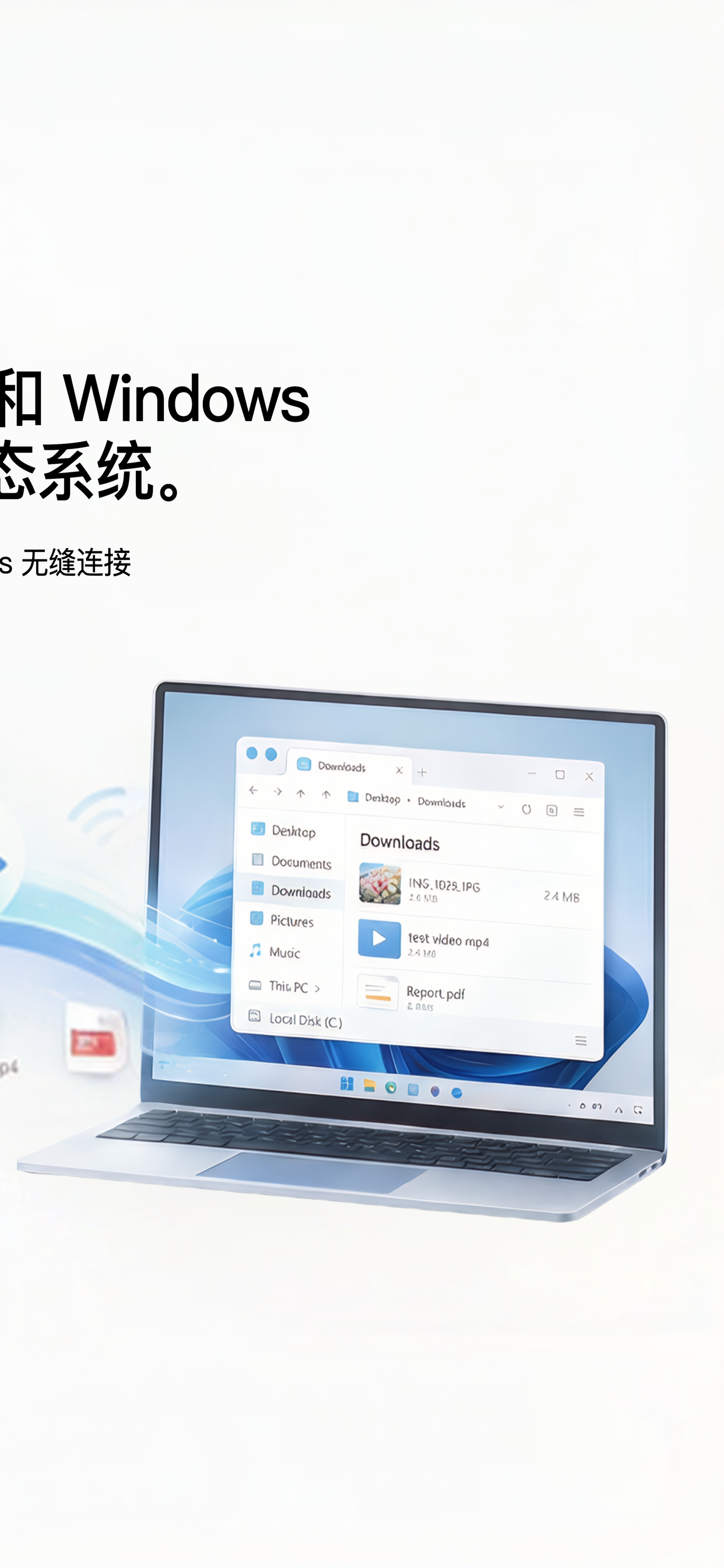
WinSend automatically discovers your Windows PC on the same Wi-Fi.
Start Transferring
Once connected:
- iPhone → Windows: Tap “Choose Images and Send to PC” or “Choose Files and Send to PC,” select your content, and it transfers directly to your Windows download folder.
- Windows → iPhone: Copy text or an image on your PC, then tap “Get from PC” in the iOS app to sync it to your phone.
- Clipboard Sync: Transfer text manually in either direction. Automatic text sync remains subject to iOS execution limits; trigger a configured Shortcut to send from another app.
Manual Connect (Fallback)
If auto-discovery fails, tap “Manual Connect” in the top-right corner and enter your Windows PC's local IP address, which you can find in the WinSend Windows client settings.
Which AirDrop Alternative Should You Choose?
- Mostly Windows + iPhone, want seamless clipboard and file sync → Choose WinSend. It's purpose-built for this exact workflow.
- Need full ecosystem coverage and care about open source/privacy → Choose LocalSend. Free, open source, and encrypted.
- Occasional one-off transfers, don't want to install anything → Choose PairDrop. Just open a browser.
- Prefer chat-style sessions and transfer history → Choose Feem.
- Devices are on different networks or you send large files remotely → Choose Send Anywhere.
Frequently asked questions
Is there an AirDrop for Windows?
No. Apple's AirDrop only works between Apple devices. To get a similar experience between an iPhone and a Windows PC, use a third-party tool: WinSend (built for iPhone + Windows, sends from the iOS share sheet), LocalSend (free and open source on every major platform), PairDrop (in the browser, no install) or Send Anywhere (across different networks).
Does Windows have a built-in AirDrop for iPhone?
The closest built-in option is Microsoft Phone Link with the Link to Windows app on the iPhone. On Windows 10 and 11 it can share files in both directions, plus calls, texts and notifications. It does not sync the iPhone clipboard, which is where tools like WinSend come in.
Do these AirDrop alternatives work on Windows 10?
Yes. WinSend supports Windows 10 and Windows 11 (64-bit) with iOS 15.6 or later. LocalSend, Feem and Send Anywhere also have Windows apps, and PairDrop runs in any modern browser.
Is there a free AirDrop alternative for Windows?
Yes. LocalSend is completely free and open source, and PairDrop is free in the browser. WinSend is free to try: new users get a one-time transfer allowance covering every feature, then WinSend Pro is a one-time purchase with no usage limits.
What happened to Snapdrop?
Snapdrop was acquired by LimeWire. AlternativeTo lists it as discontinued and reports that the site redirects to LimeWire after you upload a file. PairDrop is the actively maintained open-source fork with the same browser-based approach.
Can I transfer files from iPhone to PC without being on the same Wi-Fi?
Send Anywhere and paired PairDrop devices can connect across different networks. WinSend, LocalSend and Feem send files over the local network; WinSend's optional cloud transfer covers clipboard text only. Tip: connect the PC to your iPhone's Personal Hotspot to put both devices on the same local network.
Get Started
Ready to transfer files between your iPhone and Windows PC? Download WinSend and follow the installation and pairing guide. If your main task is copying text and links, use the dedicated iPhone-to-Windows clipboard sync guide.