Quick Verdict
- Choose WinSend if you use an iPhone with a Windows PC and want the closest thing to real AirDrop: send from the share sheet without opening any app, plus automatic two-way clipboard sync.
- Choose LocalSend if you need Android, macOS or Linux in the mix, or you specifically want a free, open-source tool you can audit.
WinSend vs LocalSend at a Glance
| WinSend | LocalSend | |
|---|---|---|
| Platforms | Windows + iOS only | Windows, macOS, Linux, Android, iOS |
| Send without opening the app | Yes — iOS share sheet integration | No — must open the app first |
| Clipboard sync | Automatic, two-way | Manual text sending only |
| Receiver must accept | No — paired device receives automatically | Yes — receiver taps Accept each time |
| Price | Free core features; Pro subscription for advanced features | Completely free |
| Open source | No | Yes (MIT license) |
| Account required | No | No |
| Internet required | No — local network only | No — local network only |
Where WinSend Wins
1. Send from the share sheet — no app switching
With LocalSend, every transfer follows the same ritual: open the app, tap Send, browse for the file, pick the device, then wait for the receiver to accept. With WinSend, you select photos in the iPhone Photos app, tap Share, choose WinSend, and the file lands on your PC. You never leave the app you are in — exactly how AirDrop works on a Mac.
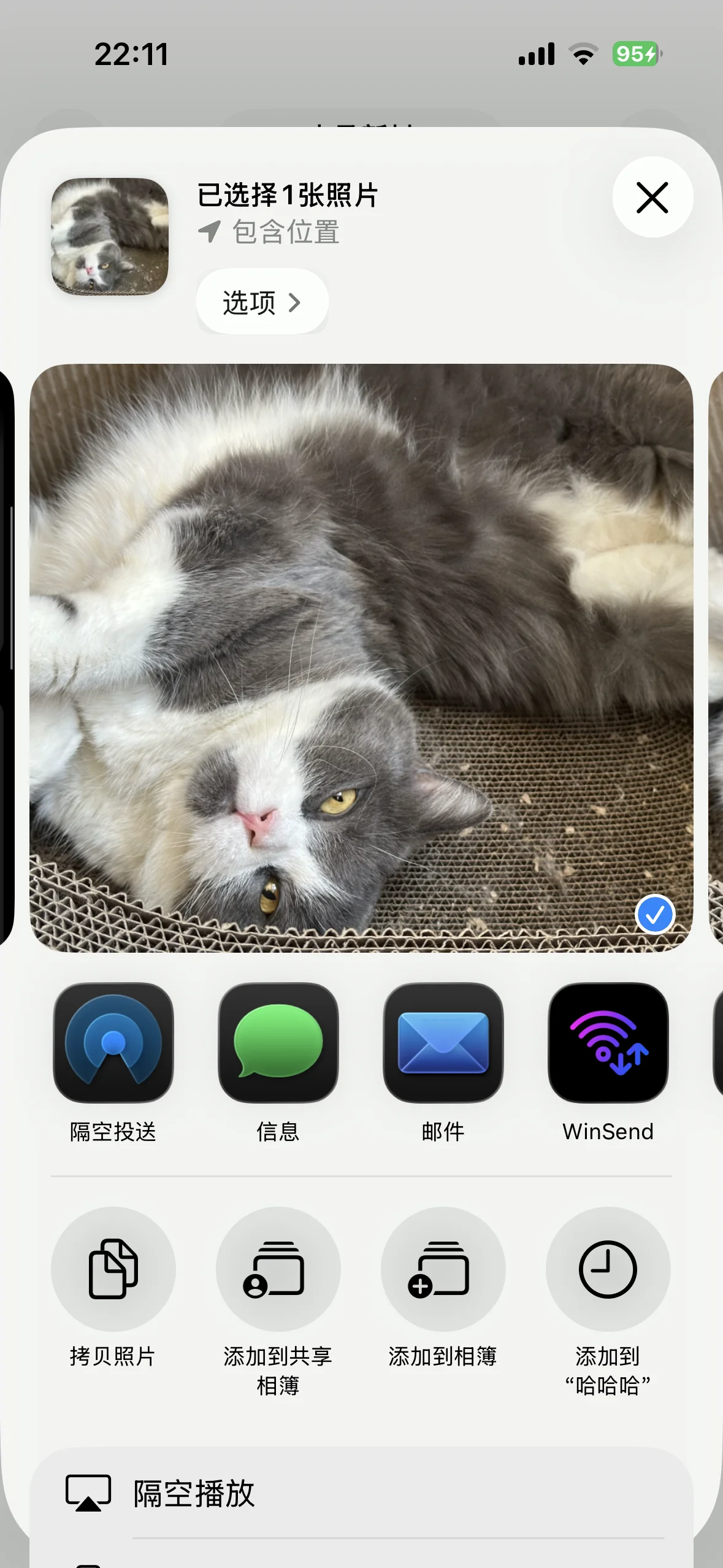
WinSend lives in the iOS share sheet, alongside AirDrop.
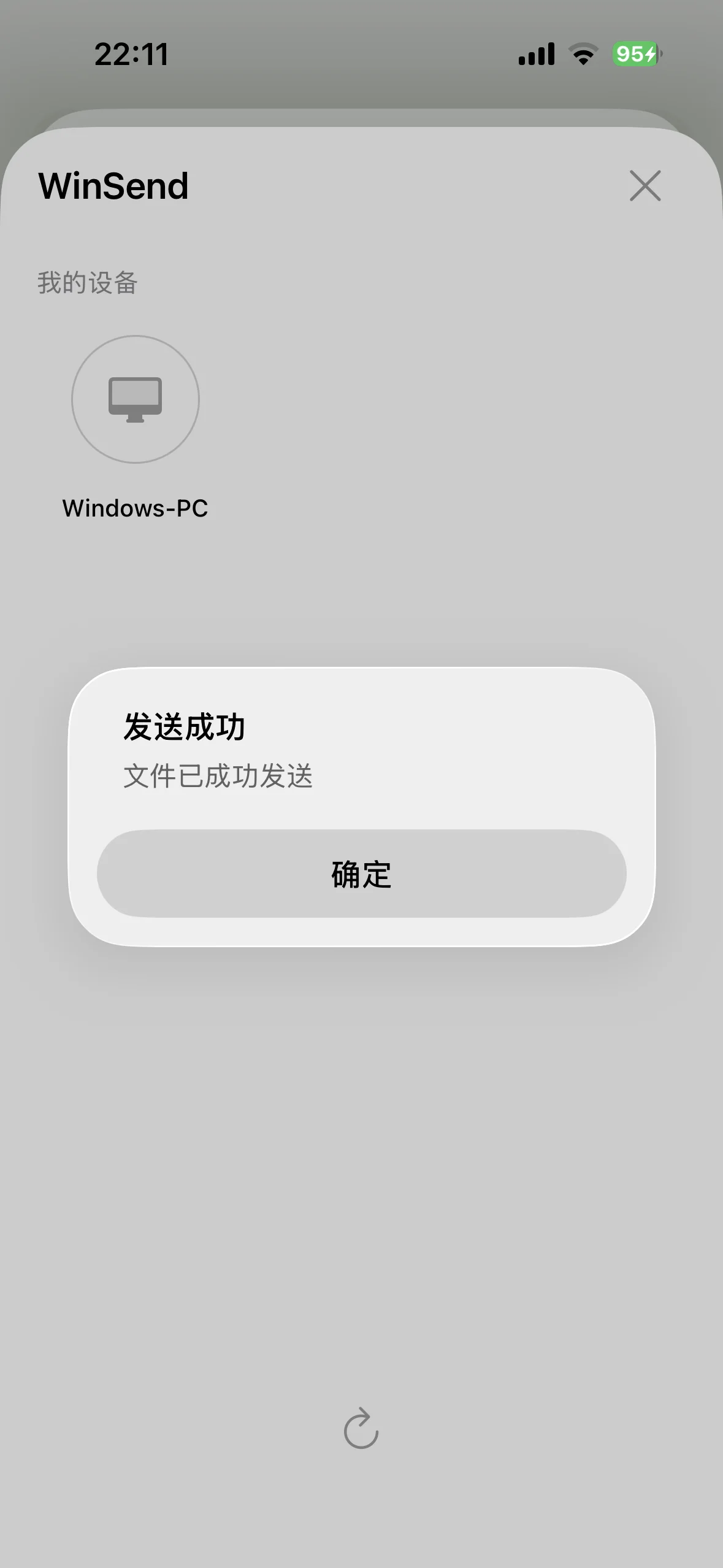
Select, share, done — the file is already on your Windows PC.
2. Automatic two-way clipboard sync
Copy text, a link, or an image on your Windows PC and it appears on your iPhone — and vice versa. LocalSend can send text snippets, but each snippet is a manual send-and-accept operation. If you copy and paste between devices more than a few times a day, this alone is the reason to pick WinSend. See how clipboard sync works with Shortcuts and Back Tap.
3. Paired devices receive automatically
Once paired, your PC accepts incoming files without anyone touching it — useful when your PC is across the room or you are transferring a batch of photos. LocalSend requires the receiver to confirm every transfer by default.
Where LocalSend Wins
To keep this comparison honest, LocalSend is the better tool in several situations:
- More platforms — Android, macOS and Linux are fully supported. WinSend is Windows ↔ iPhone only.
- Open source — the code is public under the MIT license and can be audited, which matters to privacy-sensitive users and organizations.
- Completely free — no paid tier, no feature gates, no ads.
- Folder transfers — sending entire folders is built in.
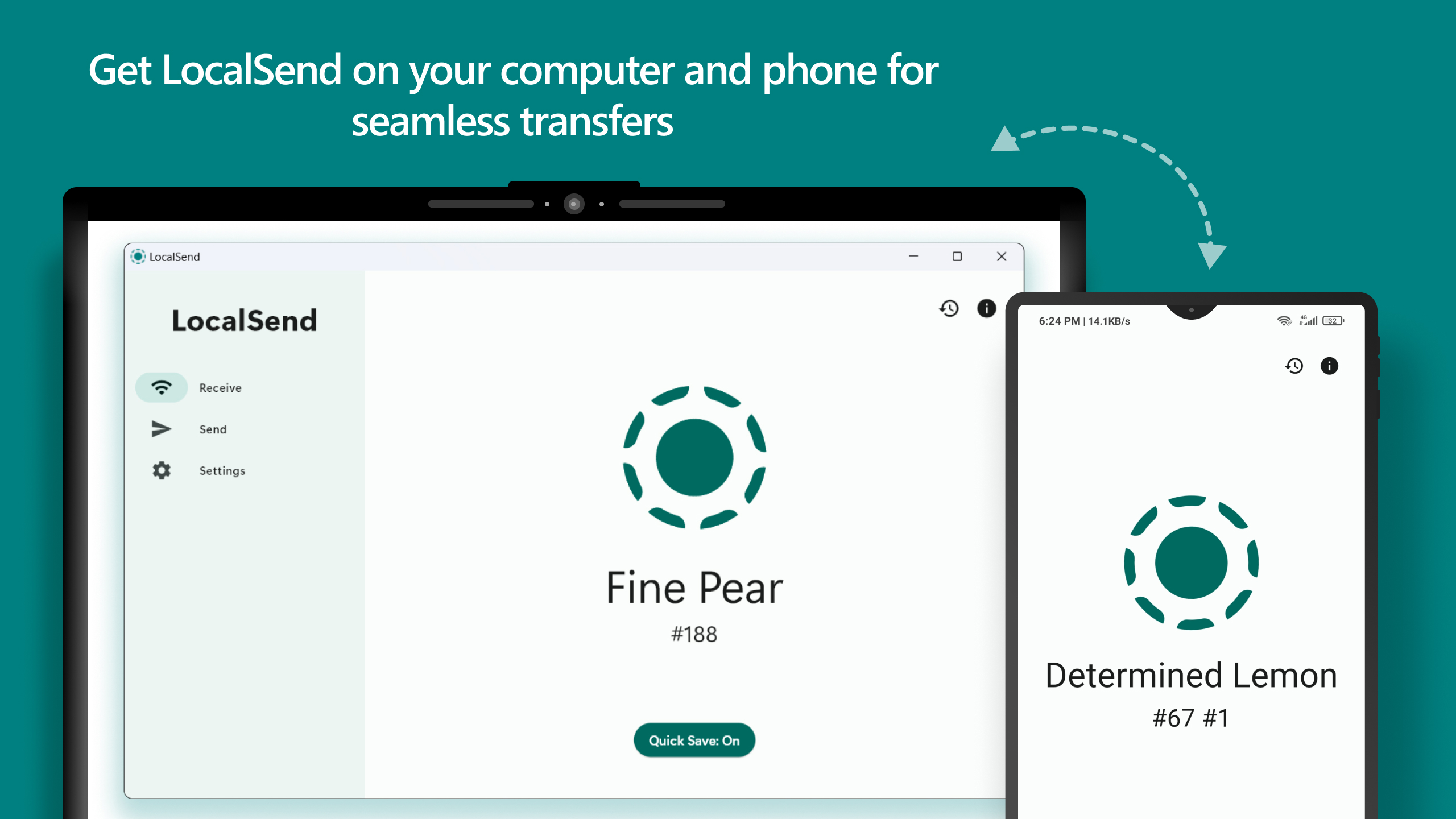
LocalSend's clean interface — capable, but every transfer starts inside the app.
Privacy and Security
Both tools transfer directly between your devices over the local network — no cloud servers, no accounts, no uploads. LocalSend encrypts transfers with HTTPS using locally generated certificates and is fully open source. WinSend is closed source but follows the same local-only principle: your data never leaves your Wi-Fi.
Who Should Choose Which?
- iPhone + Windows PC, daily transfers, clipboard-heavy workflow → WinSend. It is purpose-built for exactly this pair.
- Mixed ecosystem with Android or Mac devices → LocalSend.
- Open-source requirement (company policy, audits) → LocalSend.
- Want the closest experience to real AirDrop → WinSend, because of the share sheet integration.
Looking at other options too? See our full roundup of the 5 best AirDrop alternatives.
FAQ
Is WinSend a good LocalSend alternative?
Yes, if your setup is specifically an iPhone and a Windows PC. WinSend integrates into the iOS share sheet so you can send photos and files without opening an app first, and it offers automatic two-way clipboard sync — two things LocalSend does not do. If you need Android, macOS or Linux support, LocalSend is the better choice.
Does LocalSend work between iPhone and Windows?
Yes. LocalSend has free apps for both iOS and Windows, and transfers files over your local Wi-Fi network. However, you must open the LocalSend app, pick the file, choose the device, and have the receiver accept the transfer each time.
Is WinSend free like LocalSend?
WinSend's core features — photo/file transfer and clipboard sync between iPhone and Windows — are free. Advanced features require a Pro subscription. LocalSend is completely free and open source with no paid tier.
Which is more private, WinSend or LocalSend?
Both transfer files directly over your local network without cloud servers or accounts. LocalSend is additionally open source, so its code can be audited by anyone. WinSend is closed source but also works entirely on your local network.
Try WinSend
If your daily setup is an iPhone and a Windows PC, download WinSend and pair it in under a minute with the installation guide.