Quick Verdict
- Choose WinSend if you transfer between your own iPhone and Windows PC on the same network: no file-size or daily limits, no relay servers, no ads — plus share sheet sending and automatic clipboard sync.
- Choose Send Anywhere if you need to send files across different networks or to another location, want QR code convenience, or have Android, Mac or Linux devices in the mix.
WinSend vs Send Anywhere at a Glance
| WinSend | Send Anywhere | |
|---|---|---|
| Platforms | Windows + iOS only | All major platforms + web |
| Works across different networks | No — same local network only (by design) | Yes — 6-digit key / QR code |
| File size / daily limits | None on LAN | Free tier has file-size and daily transfer limits; premium lifts them |
| Relay servers | None — data never leaves your Wi-Fi | P2P + relay servers; cross-network traffic may pass through third-party relay |
| Ads / upsells | No | Yes, on the free tier |
| Send without opening the app | Yes — iOS share sheet integration | No — must open the app first |
| Clipboard sync | Automatic, two-way | No |
| Receiver must accept | No — paired device receives automatically | Yes — receiver enters the key or scans the QR code each time |
| Internet required | No — local network only | Yes, for cross-network transfers |
| Price | Free core features; Pro subscription for advanced features | Free with limits; premium plans available |
Where WinSend Wins
1. No file-size or daily limits on your LAN
Send Anywhere's free tier caps file sizes and daily transfers, and nudges you toward premium plans with ads and upsells. WinSend transfers directly over your local network, so there is nothing to meter: send a 10 GB video folder or a whole afternoon's photos — the only limits are your Wi-Fi speed and disk space.
2. No relay servers — data never leaves your Wi-Fi
Send Anywhere moves files peer-to-peer where possible, but cross-network transfers can be routed through its relay servers, which means your files may transit third-party infrastructure. WinSend simply cannot do that: it only works on the local network, so every byte stays between your iPhone and your PC.
3. Send from the share sheet — no app switching
With Send Anywhere, every transfer starts inside the app: pick the file, get a 6-digit key or QR code, then have the receiver enter it. With WinSend, you select photos in the iPhone Photos app, tap Share, choose WinSend, and the file lands on your PC — exactly how AirDrop works on a Mac.
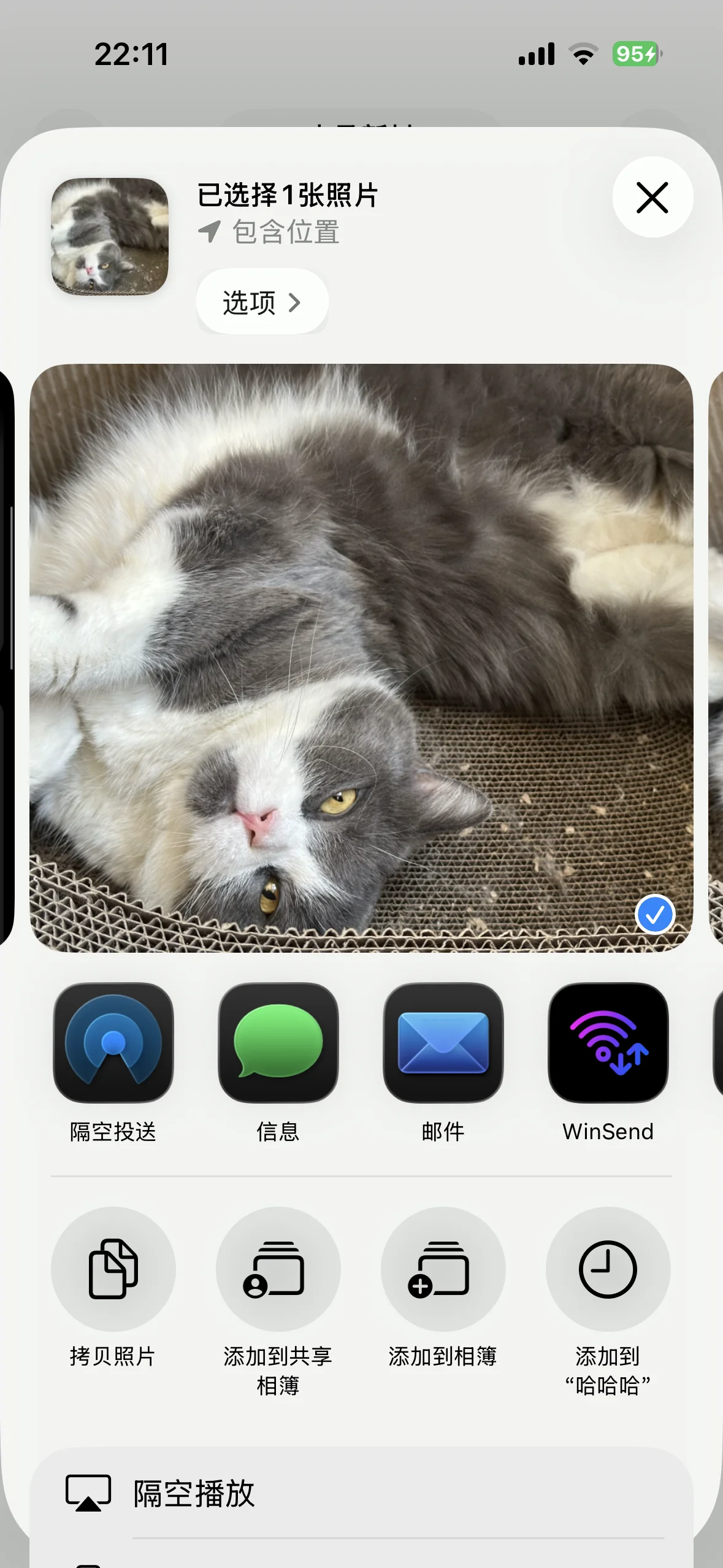
WinSend lives in the iOS share sheet, alongside AirDrop.
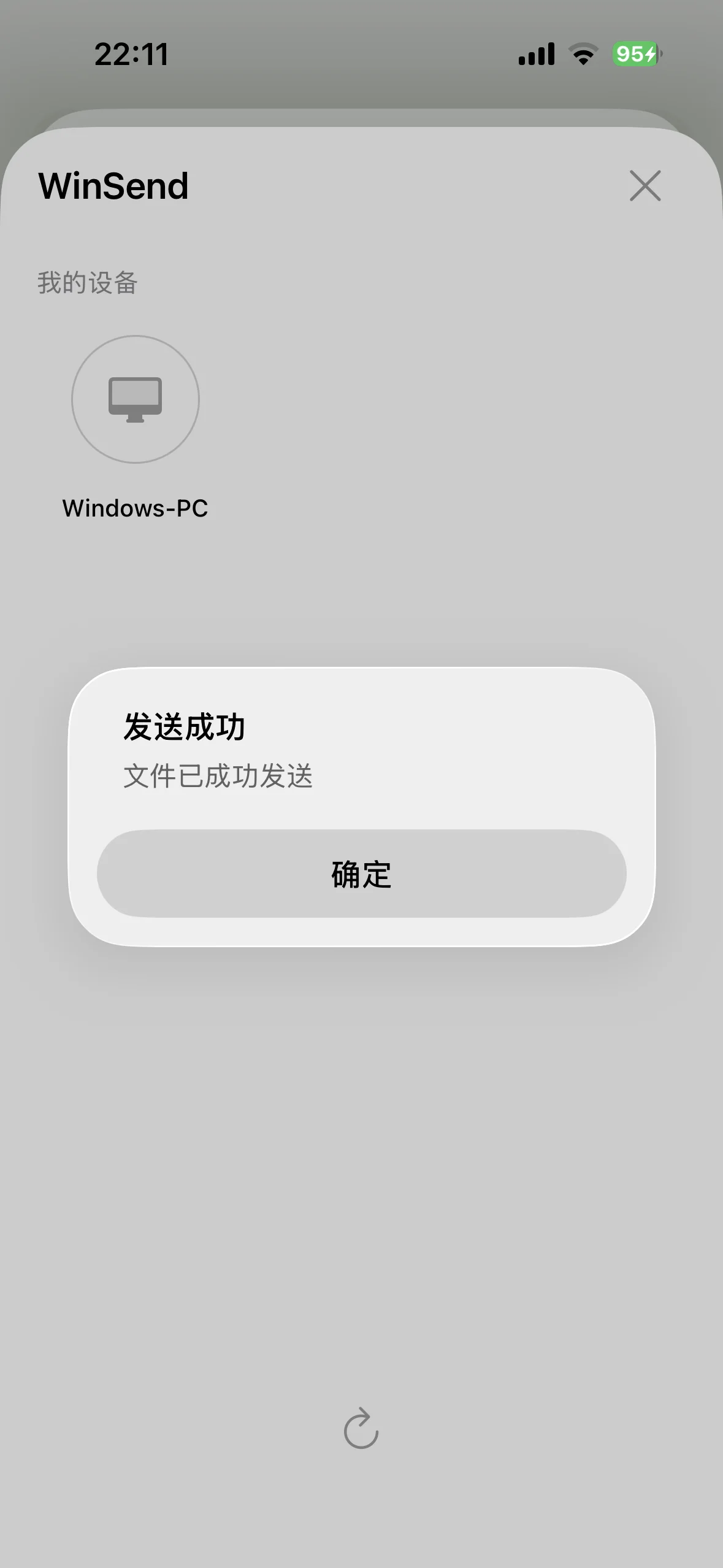
Select, share, done — the file is already on your Windows PC.
4. Automatic two-way clipboard sync and auto-receive
Copy text, a link, or an image on your Windows PC and it appears on your iPhone — and vice versa. Send Anywhere has no clipboard sync. And once paired, your PC accepts incoming files automatically, with no key to type on either side. See how clipboard sync works with Shortcuts and Back Tap.
Where Send Anywhere Wins
To keep this comparison honest, Send Anywhere is the better tool in several situations:
- Cross-network and remote transfers — the 6-digit key works even when devices are on different networks or in different locations. WinSend is local-network only, by design.
- QR code convenience — point a camera at a code and the transfer starts; great for handing files to people nearby without pairing.
- Broad platform coverage — all major platforms plus a web version, so Android, Mac and Linux are covered too.
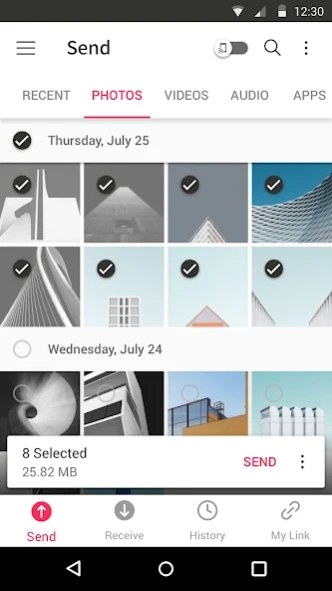
Send Anywhere's 6-digit key — flexible for remote transfers, but every session starts with a key exchange.
Privacy and Security
The core difference is where your bytes travel. WinSend transfers only over your local network — no cloud, no relay, no account — so data never leaves your Wi-Fi. Send Anywhere prefers peer-to-peer connections, but when a direct path is not available (typically cross-network transfers) traffic can pass through its relay servers. If relay privacy matters to you, keep large or sensitive transfers on a local-only tool.
Who Should Choose Which?
- iPhone + Windows PC, same network, large or frequent transfers → WinSend — unlimited and relay-free.
- Hit Send Anywhere's file size or daily limits → WinSend for local transfers.
- Devices on different networks or in different locations → Send Anywhere.
- Mixed ecosystem with Android or Mac devices → Send Anywhere.
Looking at other options too? See our full roundup of the 5 best AirDrop alternatives.
FAQ
Does Send Anywhere have a file size limit?
Yes. Send Anywhere's free tier comes with file-size and daily transfer limits, plus ads and upsells; lifting those limits requires a premium plan. WinSend has no file-size or transfer-count limits on your local network — transfers go directly between your iPhone and Windows PC over Wi-Fi, so large videos and photo batches are limited only by your network speed and disk space.
Is Send Anywhere private?
It depends on how the transfer is routed. Send Anywhere uses a 6-digit key or QR code and transfers peer-to-peer where possible, but when devices are on different networks the traffic can pass through Send Anywhere's relay servers — meaning your files may transit a third party's infrastructure. WinSend never relays anything: it only works on your local network, so data never leaves your Wi-Fi.
Is WinSend a good Send Anywhere alternative?
Yes, if your transfers happen between your own iPhone and Windows PC on the same network. WinSend has no file-size or daily limits, no ads, no relay servers, adds iOS share sheet integration and automatic two-way clipboard sync, and paired devices receive files automatically. If you need to send files to devices on a different network or in another location, Send Anywhere's 6-digit key is the right tool.
Can WinSend transfer files between devices on different networks?
No — and that is a deliberate design choice. WinSend works only on the local network so that your data never leaves your Wi-Fi and never touches a third-party server. If you regularly send files to devices in other locations, keep Send Anywhere for those cases and use WinSend for unlimited local transfers at home or the office.
Try WinSend
If your daily setup is an iPhone and a Windows PC, download WinSend and pair it in under a minute with the installation guide.