Apple's AirDrop feels effortless because you never leave the app you are in. You tap Share, pick a contact or device, and the file is gone. That same convenience has been missing on Windows — until now.
WinSend works the same way. Once installed and paired, it appears right in the iOS share sheet. You select a photo or video in the Photos app, tap the WinSend icon, choose your Windows PC, and the file transfers instantly. You do not need to open WinSend first.
How to Send Photos from iPhone to Windows Like AirDrop
Select Photos and Open the Share Sheet
Open the Photos app on your iPhone, select the photo or video you want to transfer, then tap the Share button. You will see the standard iOS share sheet with Messages, Mail, AirDrop and — after installing WinSend — the WinSend icon.
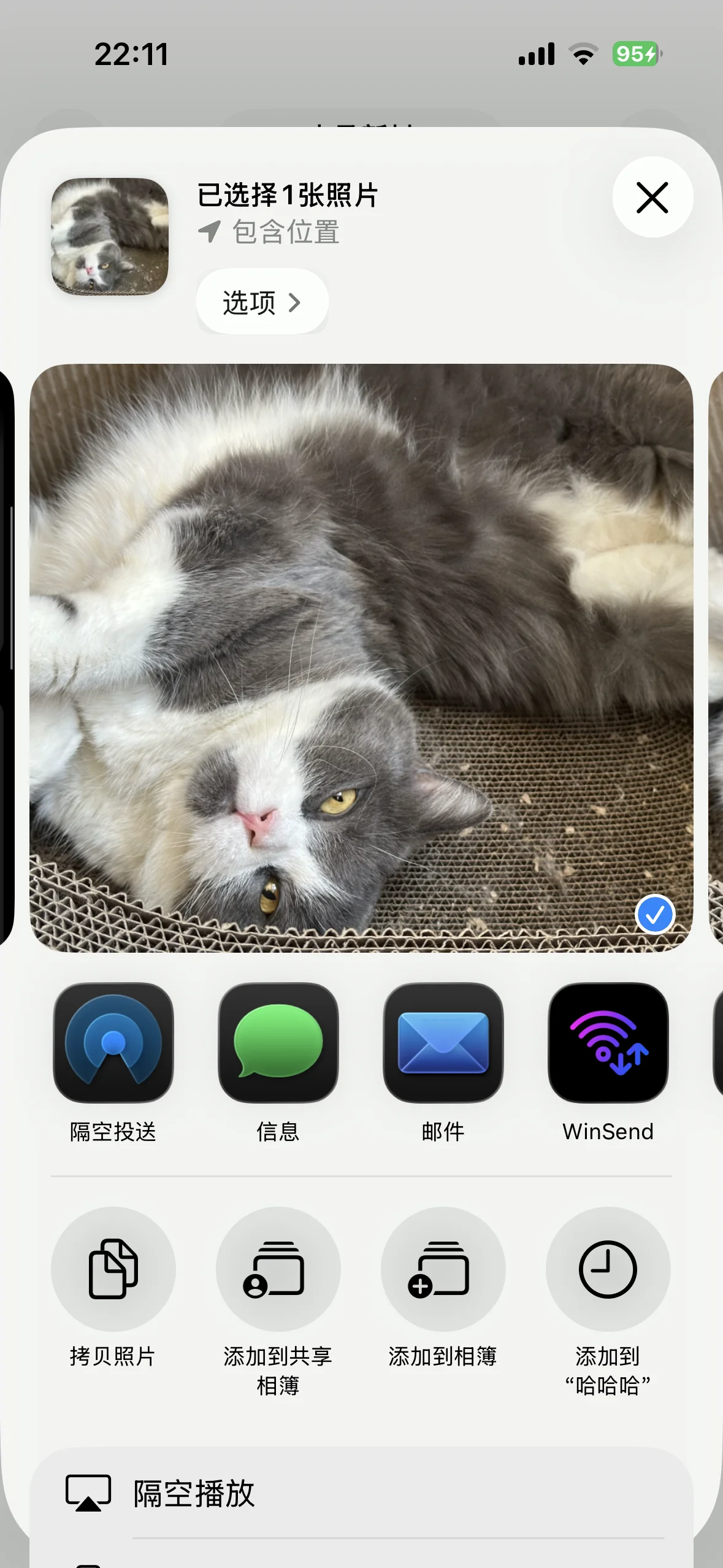
WinSend appears alongside AirDrop in the iOS share sheet.
Tap WinSend and Pick Your PC
Tap the WinSend icon. A device picker opens and shows your paired Windows PC under "My Devices". Tap it once to start the transfer.

Choose your Windows PC from the WinSend device list.
Wait for the Transfer to Complete
A progress indicator appears around your PC icon. The transfer happens over your local Wi-Fi when both devices are on the same network, so it is usually fast even for videos.

The progress ring shows the file is being sent.
Done — File Received on Windows
Once the transfer finishes, you will see a "Send Successful" confirmation on your iPhone. The file is already saved in the WinSend receive folder on your Windows PC.
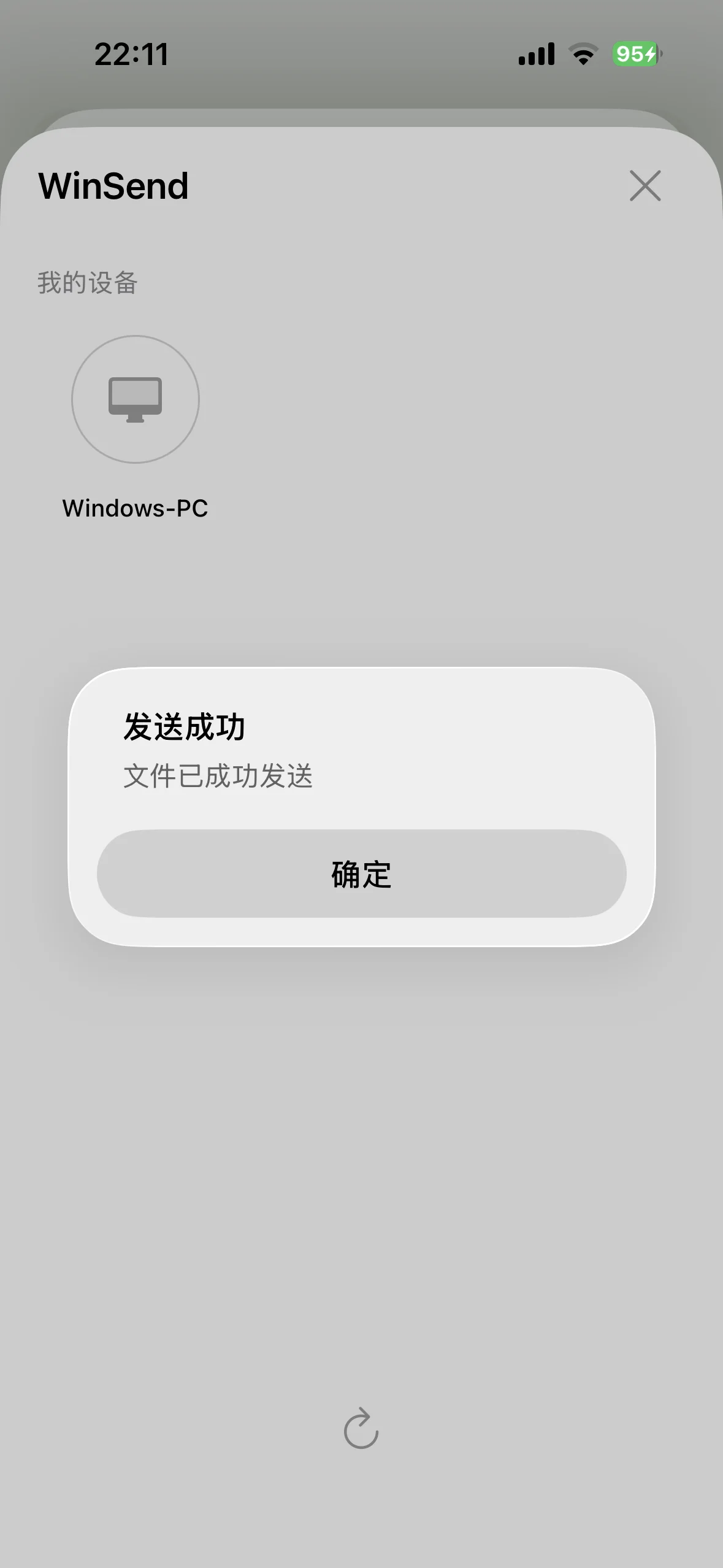
Your file has been sent. No email, no cloud sync, no cable.
What Makes This Different From Other Tools?
Most file-transfer apps make you open their app, browse for files, and then send. WinSend skips that. Because it lives in the iOS share sheet, the workflow is almost identical to AirDrop:
- No app switching — send directly from Photos, Files, Safari, Notes or any app with a Share button
- No upload to cloud — transfers go device to device over your network
- No compression — original photo and video quality is preserved
- No signup — just install, pair once, and send
What You Can Send
- Photos and videos from the Camera Roll
- Screenshots and bursts
- Documents from the Files app
- PDFs, links and text from Safari or Notes
Get Started
If you want AirDrop-style transfers between iPhone and Windows, download WinSend and follow the installation and pairing guide. Pairing takes under a minute, and after that the share sheet does the rest.